

About the Google Drive Connector
The Google Drive Connector enables you to query documents stored in your Google Drive directly from Perplexity.
It integrates Google Drive with Perplexity’s productivity features, allowing you to instantly search and combine relevant information across your Drive files, email, calendar, other connected apps, and the web, without manual searches or context switching.
The Google Drive Connector is available for Perplexity Pro, Perplexity Max, Enterprise Pro, and Enterprise Max users.
Below you’ll find an overview of this Connector and how to activate it.
What does the Google Drive Connector do?
Once connected, the Google Drive Connector allows you to search across all your Google Drive files to provide answers based on that content. The connector works by securely syncing your selected files to Perplexity’s platform, enabling comprehensive searches that combine information from your documents with other sources.
The connector performs two different types of search:
Standard Search: Search across your entire Drive with standard indexing
High-Precision Search: Deep analysis of selected files for comprehensive answers from your documents. Only available for Enterprise customers.
You can use the connector to quickly find information in spreadsheets, presentations, documents, and other supported file types without manually opening each file in Google Drive. This streamlines research, document review, and information retrieval across your entire Google Drive.
Drive content you import into a Project is copied at the time of import, so import the folder again to bring in new or edited files. Its subfolders are included. To search your current Drive files with no import, select Google Drive as a source in a Thread.
Key differences by plan
All Perplexity users can search their entire Google Drive using Perplexity and sync Google Drive files to projects to query using standard search. Enterprise Pro and Enterprise Max users can also sync Google Drive files to their personal repository (My Files). Additionally, high-precision search is only available to Enterprise users (Enterprise Pro and Enterprise Max). Please note that limits apply for high-precision search.
For clarity, here’s a comparison:
Feature | Pro / Max | Enterprise Pro / Max |
Standard search entire Drive | ✓ | ✓ |
Sync files to projects | ✓ | ✓ |
Sync files to My Files | ✗ | ✓ |
High-precision search | ✗ | ✓ |
Note: Limits apply for high-precision search. You can learn more in this article.
Supported file types
The Google Drive Connector supports a wide range of document formats:
Google Docs, Sheets, and Slides
Microsoft Office files (DOCX, XLSX, PPTX)
PDF documents
CSV files
Markdown (MD) files
JSON files
Text (TXT) files
At the moment, the Google Drive Connector does not support images, audio files, or video files.
Privacy and data security
The Google Drive Connector requires the following permissions to function:
See and download all your Google Drive files
See information about your Google Drive files
See, edit, create, and delete only the specific Google Drive files you use with this app
Note: Perplexity uses these permissions to read and sync your files. The “edit, create, and delete” permissions enable the connector to maintain sync metadata, but Perplexity does not modify your Drive file content.
The Google Drive Connector respects user permissions, and will only serve a user content they’re authorized to see.
If you delete a file from Google Drive or remove access to it, that file is immediately removed from Perplexity.
Additionally, if you disconnect your Google account in Perplexity, you can choose whether you’d like to keep or delete your files. If you keep them, they will stay in your account, but they will no longer synchronize if you make changes to them in Google Drive.
Default vs. high-precision search
The default search behavior of the Google Drive connector uses a direct API integration. This integration uses the OAuth provided by Google Drive, which means that it will always adhere to the file permissions as set in Google Drive. Perplexity does not index your entire drive, and it only gets access to the files returned by the API.
Using standard search, Perplexity queries your Drive through Google’s API in real time and only accesses files returned by the API based on your search query.
However, if you choose to upload files for high-precision search, we use the API integration to index only the selected files. Default search will still be available for the files you choose not to upload for high-precision search. Please note that Perplexity still adheres to Google Drive’s file permissions. For example, if you lose access to a file in Google Drive, you can no longer search the file and its contents using Perplexity.
For more details on how uploaded Google Drive files are protected, see Google Drive Connector file upload security.
Enterprise-grade security and control
For Enterprise organizations, Perplexity offers enterprise-grade protections and compliance including SOC 2 Type II certification, end-to-end encryption, strict data privacy measures, and granular user access controls. Your Google Drive data, just like any other Enterprise data, is never used for AI training, and robust safeguards ensure confidentiality and regulatory compliance.
You connect Perplexity to your Google Drive account at a personal level. This means that no one else in your organization is able to query your Drive files. However, if you sync files to a shared project, anyone with access to that Project will be able to search those files.
To maintain control over how Perplexity interacts with Google Drive, organization admins can enable or disable the connector for all organization users from Organization settings.
How to activate it
To activate the Google Drive Connector:
Open Plugins in the sidebar (or Customize → Connectors if you don’t see Plugins yet). Find the Google Drive connector on Discover or search for it by name, then open its page.
Select Connect.
Google then prompts you to log in and grant permissions to the connector. These permissions allow the connector to access your Drive files and metadata.
Click Allow to start using Perplexity with Google Drive.
Once the connector is connected, you can select specific files or folders to sync with Perplexity by clicking the vertical ellipsis (⋮) and then Upload. Perplexity syncs these files for higher-precision search on your most important internal knowledge.
This connector can also appear inside a plugin. Connecting it anywhere connects it for your account everywhere, and your connection and your organization’s connector settings apply inside every plugin. See What are plugins?
Using connected files
Once you have connected Perplexity to Google Drive, you can use your synced files in two ways:
As a source for search
Select Google Drive as a source from Set sources for search when creating a new session. Perplexity searches your synced Drive files alongside other selected sources (web, academic, other App Connectors, etc.) to provide comprehensive answers.
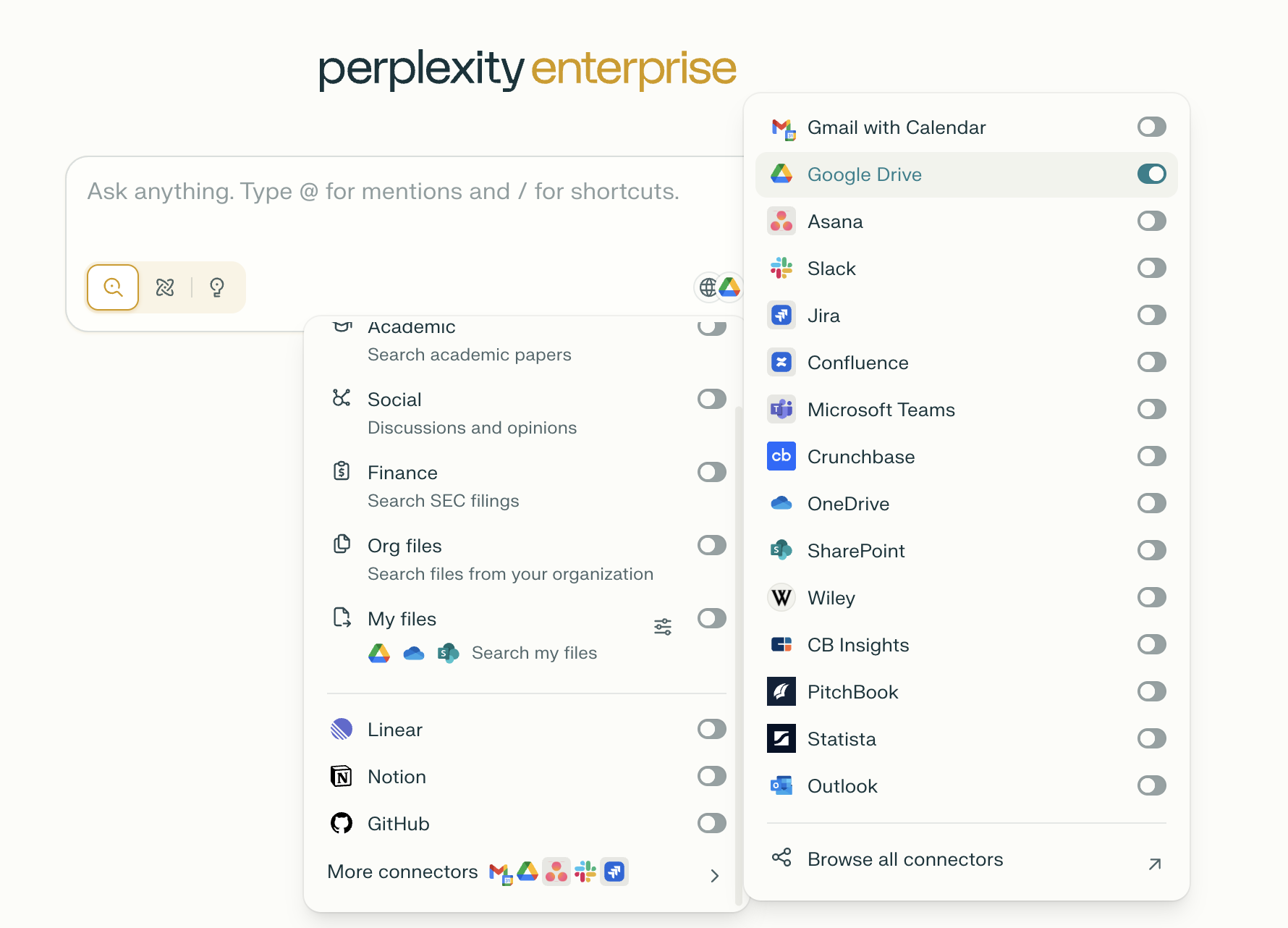
Alternatively, you can mention @Google Drive when starting a new thread, and write a search prompt.
As file attachments in Projects
To synchronize Google Drive files with a project, click Add from cloud in the right sidebar of the project you want to connect your files to. Then select the files and folders you want to sync with that Project.
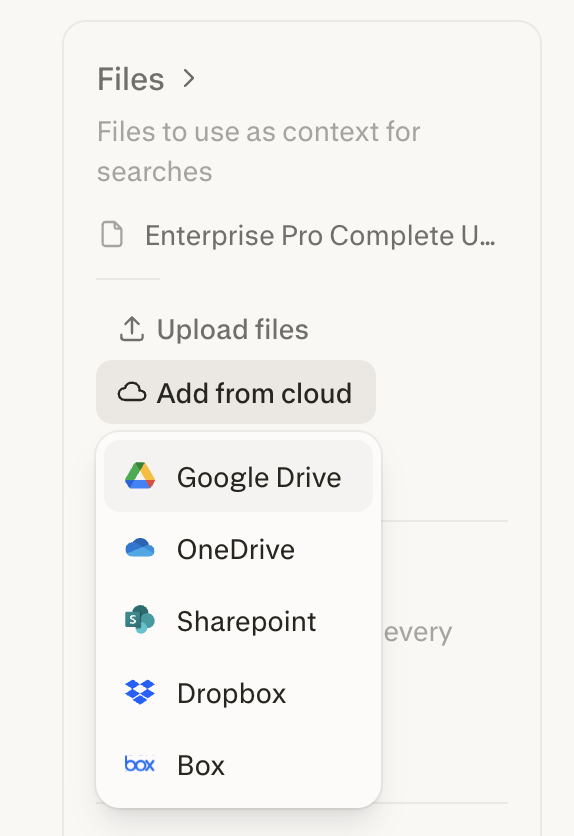
Anyone who has access to a project can search the files synced to it from Google Drive.
Where an upload lands depends on where you start it. Uploads started inside a Project’s Files view go into the folder you have open, and uploads started from the Project’s Sources card or the cloud picker go to the top level. Moving an uploaded file into a folder is not available today, so upload it into the folder and delete the top-level copy.
Trying it out
Once you have connected Perplexity to Google Drive, try running queries like these to use your Drive content:
“Summarize the Q4 financial report in my Drive and highlight key metrics"
"Find all meeting notes about the product launch from last month"
"What are the action items from the project planning documents?"
"Compare the data in the two budget spreadsheets”
The Google Drive Connector works seamlessly with other Perplexity features, including projects, Pro Search, and other App Connectors to create a unified knowledge experience.
Troubleshooting
Google Drive is not enabled for your organization
If you’re a member of an Enterprise organization and can’t connect the Google Drive Connector on your account, an admin may have disabled it for your organization. Get in touch with an organization admin who will be able to confirm this.
If it’s enabled for your organization but you still experience issues, contact us.
OAuth scope settings
Google-specific settings may block the integration between Perplexity and Google Drive. As a Google Workspace administrator, you can usually fix this in the Admin console.
Perplexity should not have issues if Unrestricted access is granted in Google Workspace. However, if your organization cannot set access to “Unrestricted,” try these alternatives:
Select Restricted: Only trusted apps can access a service.
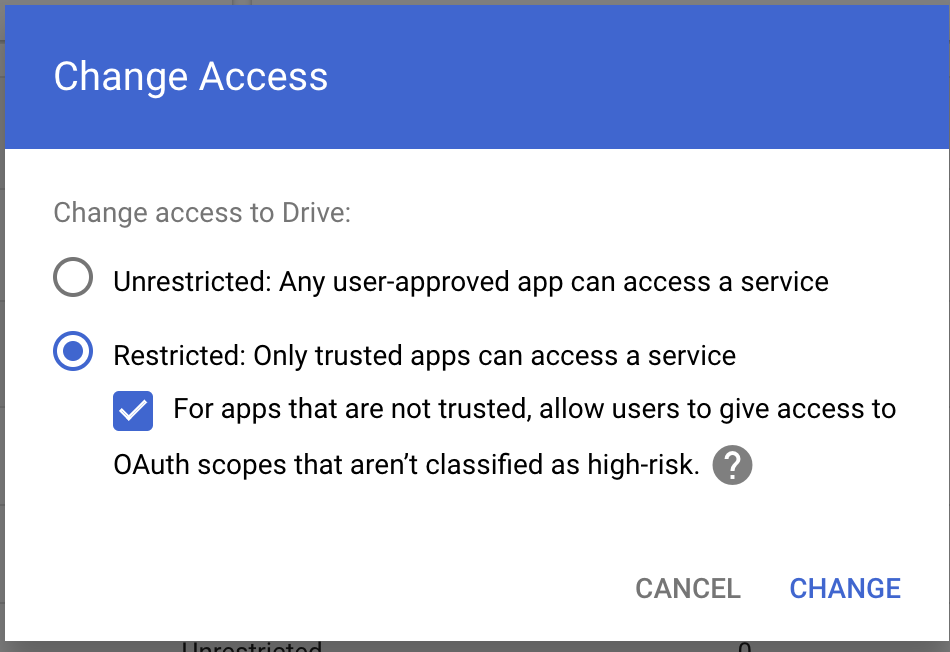
Enable For apps that are not trusted, allow users to grant access to OAuth scopes that aren’t classified as high-risk.
Save your changes and ask users to open the Installed tab on the Plugins page (or Customize → Connectors if you don’t see Plugins yet), open the Google Drive connector’s page, and select Reconnect.
If issues persist after updating these settings, contact Perplexity support for assistance.