

Overview
The Salesforce connector lets Perplexity read and update your customer relationship management (CRM) data. It can look up accounts, contacts, leads, opportunities, and custom objects, run Salesforce Object Query Language (SOQL) queries, search records, and create, update, or delete records. The connector uses Salesforce’s hosted Model Context Protocol (MCP) server (SObject All), so every request runs as the signed-in Salesforce user, with that user’s existing permissions. Setup has two parts:- Your Salesforce administrator turns on the MCP server and creates an External Client App for Perplexity in your Salesforce org. This one-time setup takes about 20 minutes, and a new app can then take up to 30 minutes to start working.
- An administrator of your organization in Perplexity adds that app’s Consumer Key in your organization’s connector settings. This is also a one-time step. After that, each person connects their own Salesforce account. On Pro and Max, you add the Consumer Key yourself in the connector’s Manage setup tab.
Privacy and data security
Perplexity reaches Salesforce only as the user who connected, so Salesforce permissions are the boundary on what Perplexity can see or change.- Access scope — Profiles, permission sets, field-level security, and sharing rules all still apply. Users can’t see or change anything through Perplexity that they couldn’t already in Salesforce.
-
Audit trail — Changes made through Perplexity appear in Salesforce’s audit
trail under the user’s name. MCP traffic appears in Salesforce API logs with
API_CLIENT_CATEGORY = SALESFORCE_HOSTED_MCP. - Direct connection — Perplexity connects directly to Salesforce with your Salesforce org’s own External Client App. No third-party integration service sits in between.
- Administrator control — Your Salesforce administrator can revoke all access at any time by deactivating the MCP server or blocking the External Client App. On Enterprise plans, your organization’s Perplexity administrator can also turn the connector off for the organization. Turning it off blocks the connector but keeps users’ stored sign-in tokens until each user disconnects. To remove everyone’s access at once, block the External Client App in Salesforce.
- Where data is stored — Perplexity doesn’t keep a separate copy of your Salesforce records. Results that appear in a session are saved with that session and follow your session retention settings. See Data Retention for Enterprise.
- Training use — Data accessed through the Salesforce connector is never used to train Perplexity’s models or any third-party model.
- Encryption — Connector credentials are encrypted in transit with TLS and encrypted at rest.
- Compliance — Perplexity’s controls are audited under SOC 2 Type II. Security and compliance documentation is available in the Perplexity Trust Center.
How to activate it
Before you start
- You are on the Pro, Max, Enterprise Pro, or Enterprise Max plan.
- You have a Salesforce System Administrator for the org you want to connect.
- On Enterprise plans, you have an administrator of your organization in Perplexity who can manage connector settings. On Pro and Max, you add the Consumer Key yourself.
- Your Salesforce org can use hosted MCP servers. Salesforce intends them for customers with Flex Credits and may bill server usage. Check with your Salesforce account executive. See Salesforce hosted MCP servers: Get Started and Flex Credits billable usage.
Step 1: Activate the SObject All MCP server (Salesforce admin, about 2 minutes)
-
Sign in to Salesforce at
login.salesforce.comor your My Domain URL, such ashttps://yourcompany.my.salesforce.com. - Click the gear icon at the top right.
- Choose Setup.
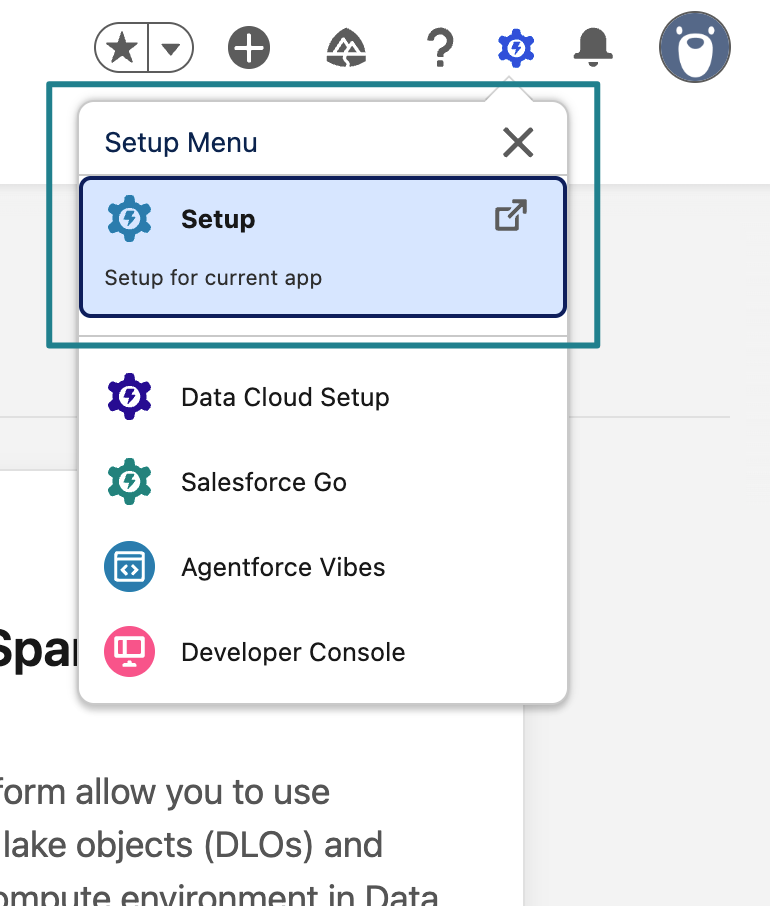
Figure 1 — The gear menu opens Salesforce Setup.
- In Quick Find, enter MCP Servers, then open Integrations → API Catalog → MCP Servers. All standard servers start out Inactive. The yellow banner is Salesforce’s Flex Credits billing notice.
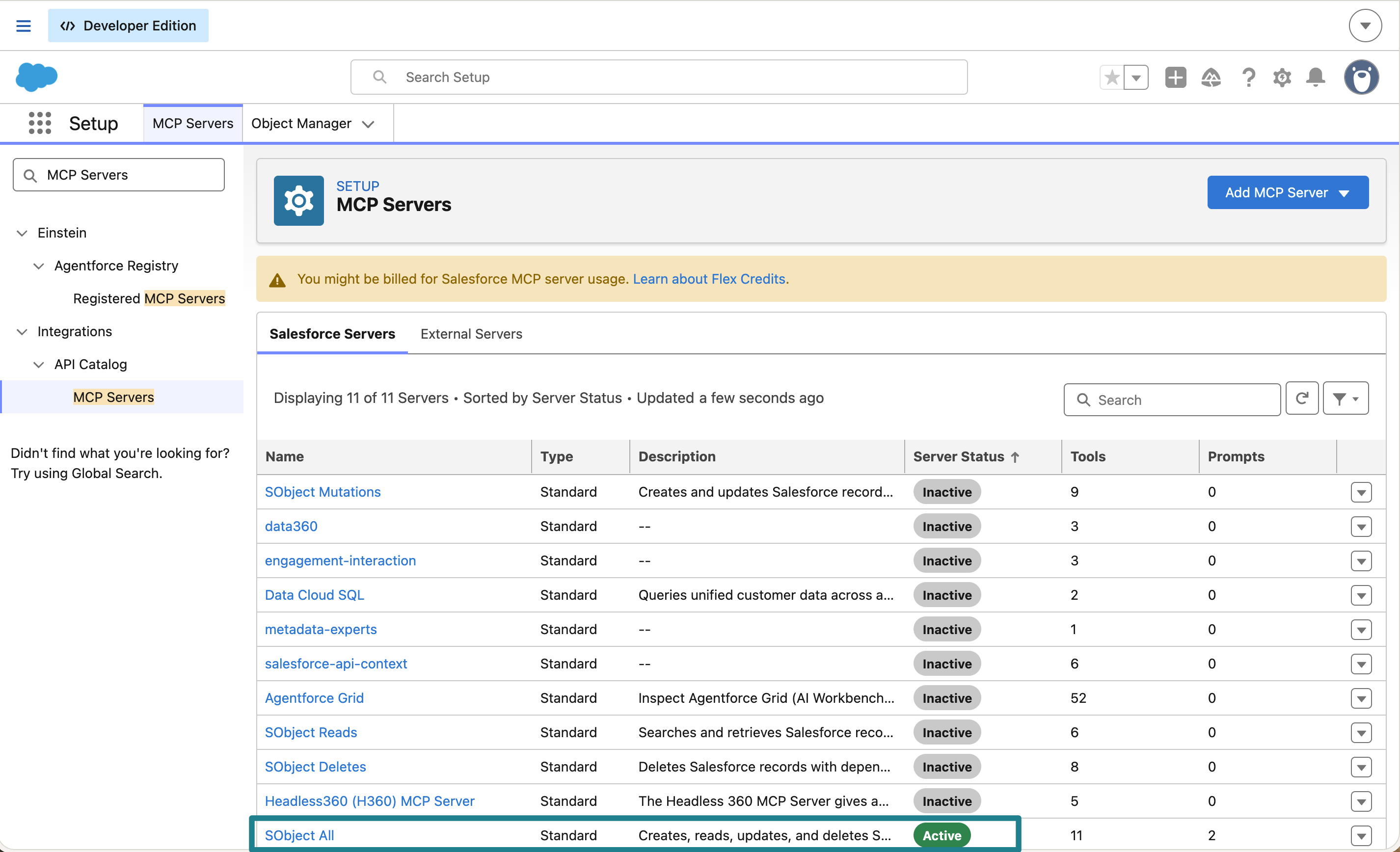
Figure 2 — The MCP Servers list, with SObject All active and the other standard servers inactive.
- Open SObject All.
- Click Activate. When it’s done, the status shows Active and the button changes to Deactivate.
- Leave every other server off.
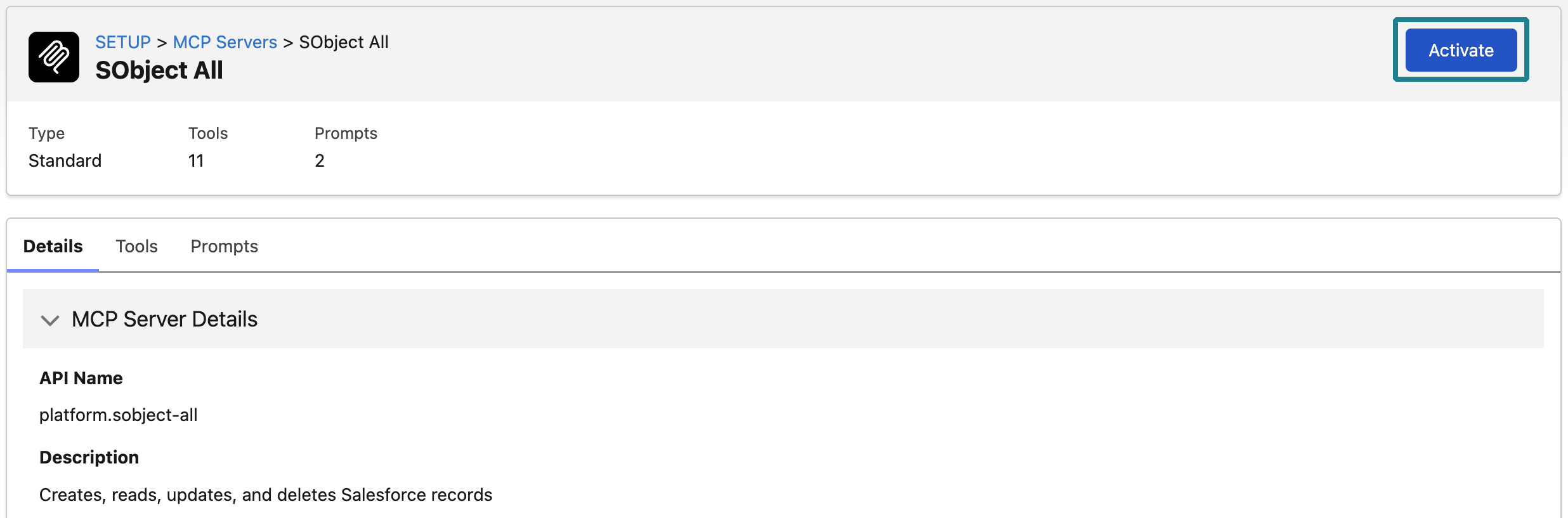
Figure 3 — SObject All before activation, with Activate highlighted.
Step 2: Create the External Client App (Salesforce admin, about 10 minutes)
The tables in this step and the next mark each setting:- Locked: required by Salesforce. Changing it requires Salesforce Support.
- Required: the connector doesn’t work without it.
- Your choice: either way works.
- Keep off: works if turned on, but adds risk.
- Test first: possible, but test it in a sandbox or Developer Edition org first.
- In Setup Quick Find, enter External Client App Manager and open it.
- Click New External Client App.
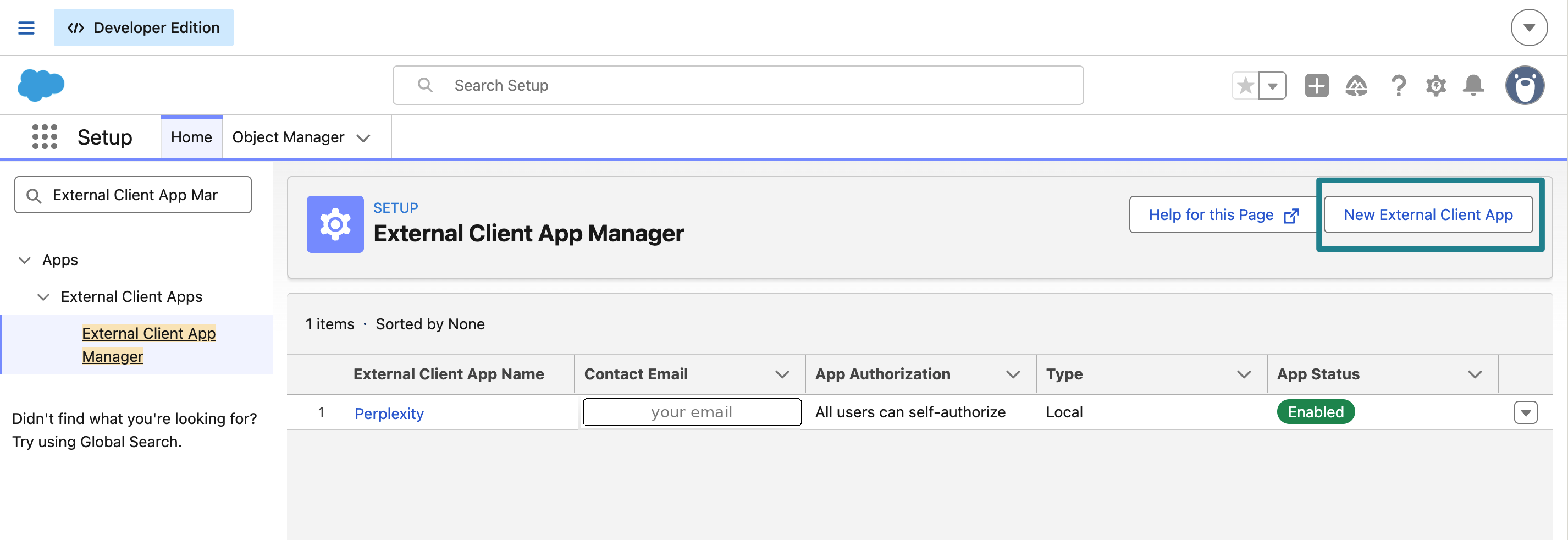
Figure 4 — External Client App Manager, where you create the Perplexity app.
-
Fill in Basic Information:
Table 1 — Basic Information settings for the Perplexity External Client App.
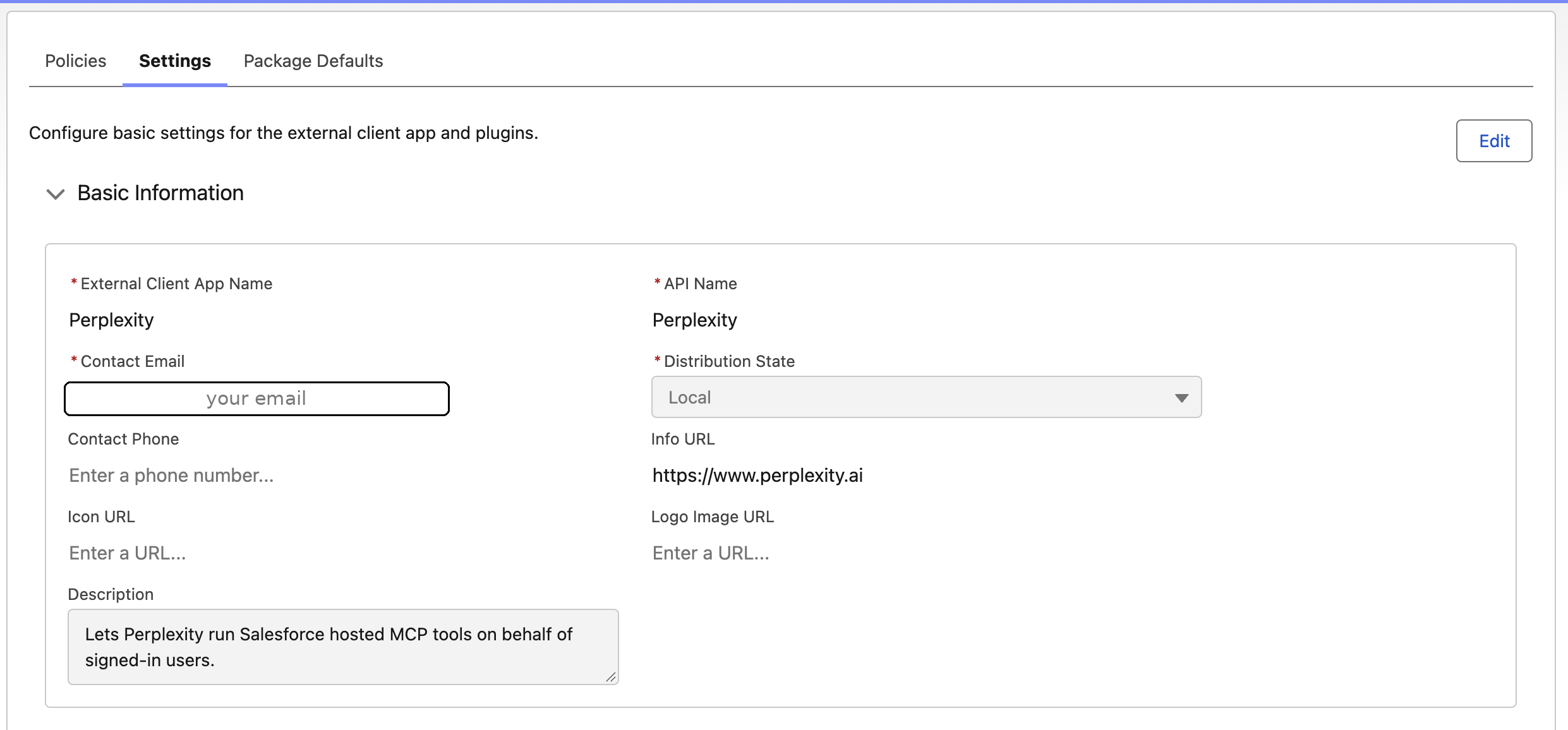
Figure 5 — Basic Information for the Perplexity External Client App.
- Expand API (Enable OAuth Settings) and select Enable OAuth.
-
Paste both of these URLs into Callback URL (required), one per line,
exactly as written. A mismatch makes sign-in fail with
redirect_uri_mismatch. -
Move exactly two scopes to Selected OAuth Scopes under OAuth Scopes
(required):
- Access Salesforce hosted MCP servers (mcp_api)
- Perform requests at any time (refresh_token, offline_access)
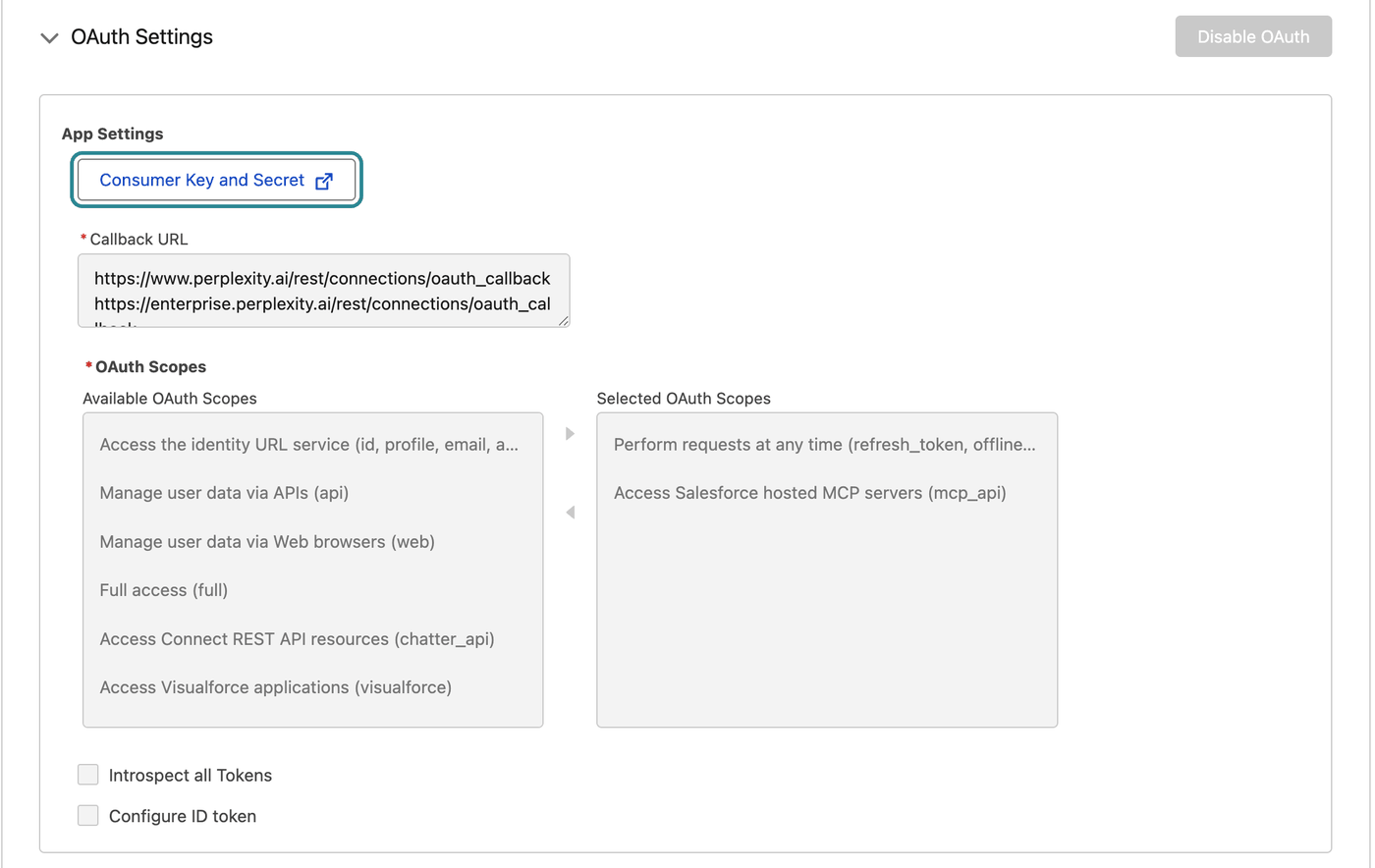
Figure 6 — OAuth settings with both callback URLs and the two required scopes.
-
Set Flow Enablement and Security:
Table 2 — Flow Enablement and Security settings for the Perplexity External Client App.
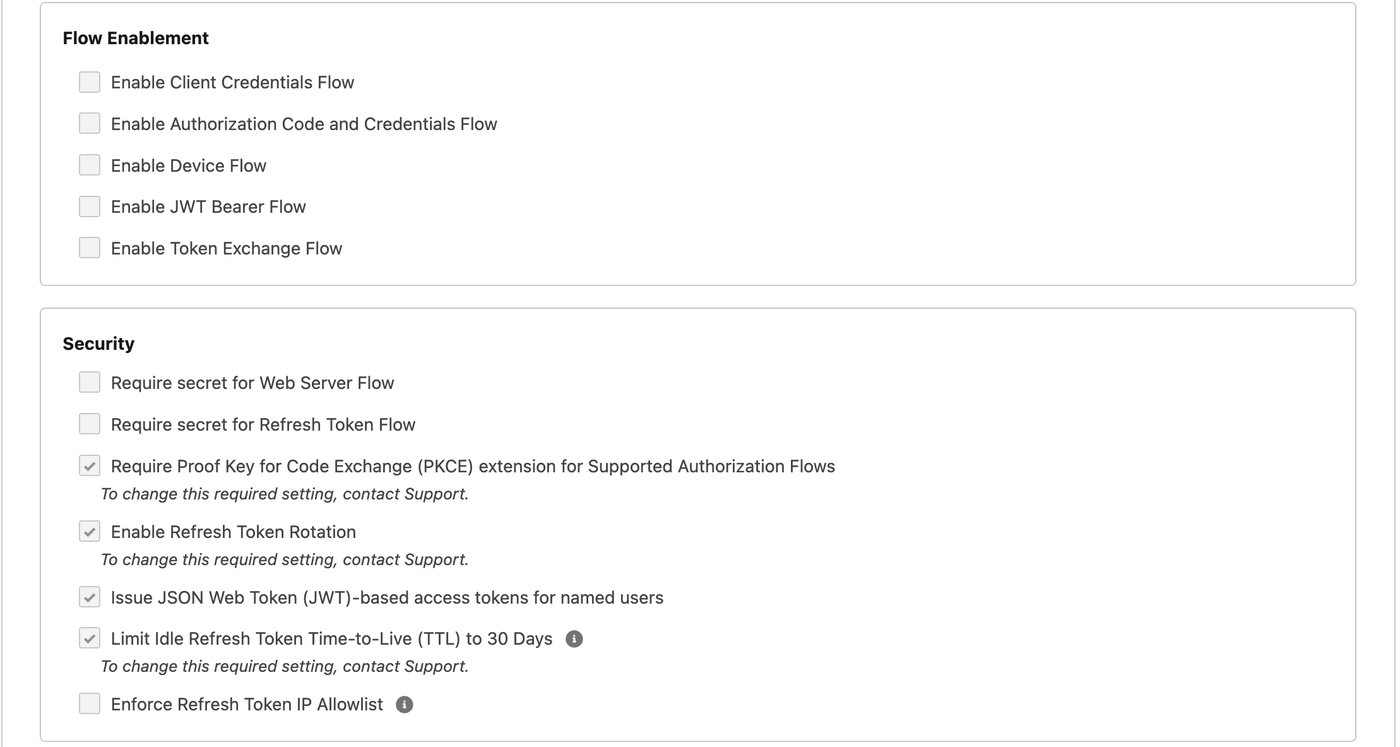
Figure 7 — Flow Enablement and Security settings for the Perplexity app.
- Leave SAML, Canvas, Mobile, and Push Notification settings off, then click Create.
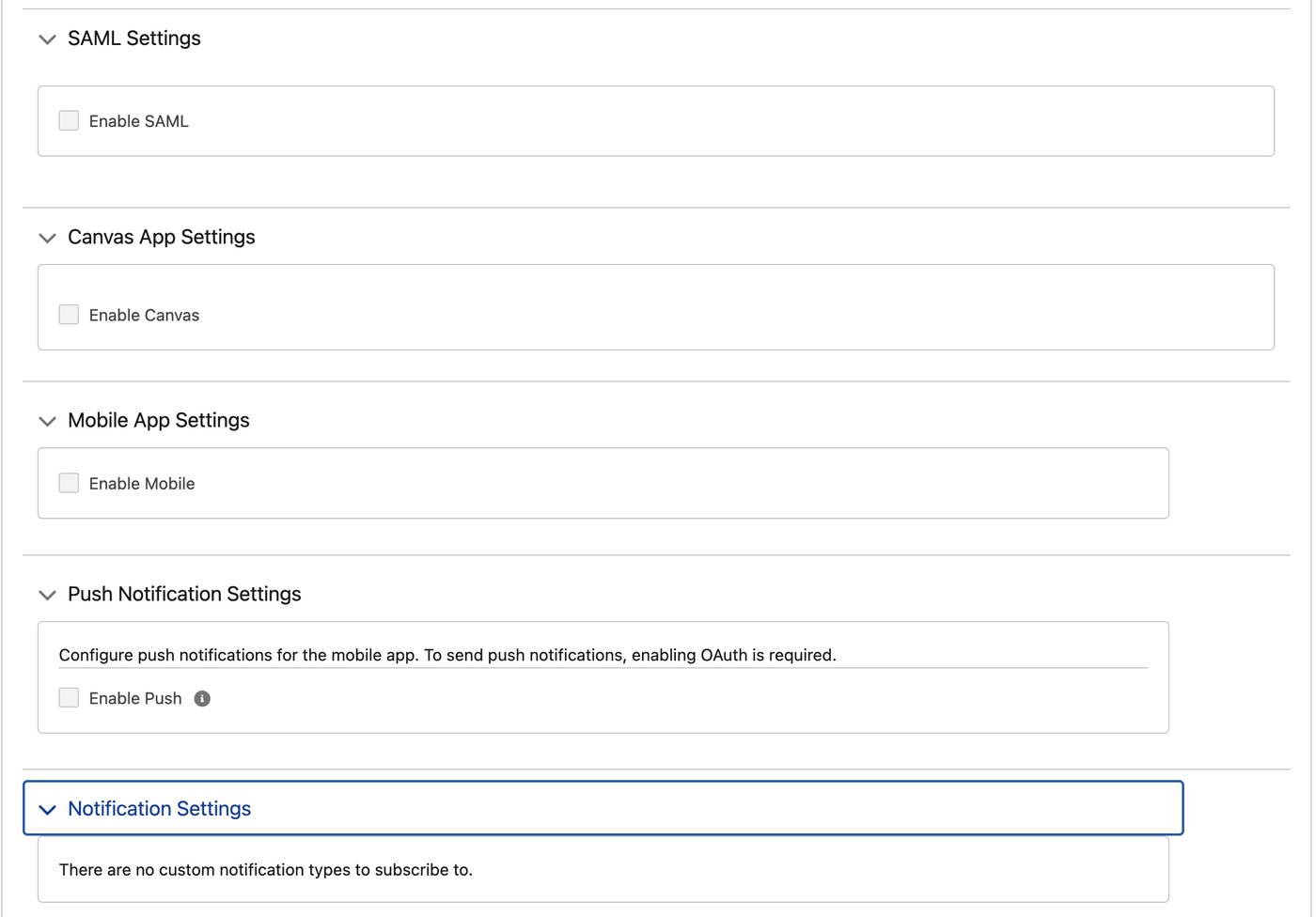
Figure 8 — SAML, Canvas, Mobile, and Push Notification settings left off.
Step 3: Set policies (Salesforce admin, about 3 minutes)
Open the app, go to Policies, and click Edit.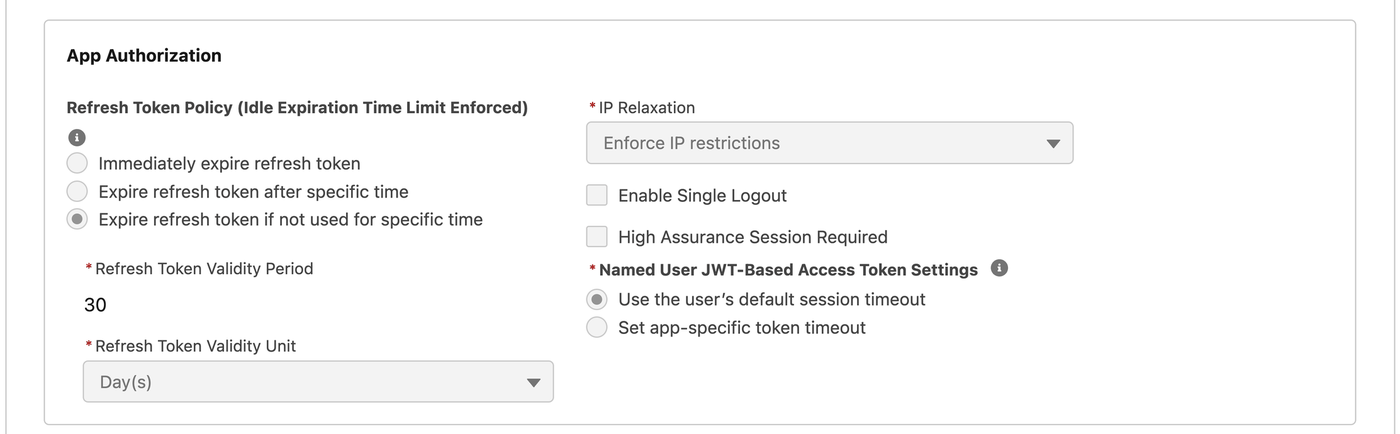
Figure 9 — App Authorization policy settings.
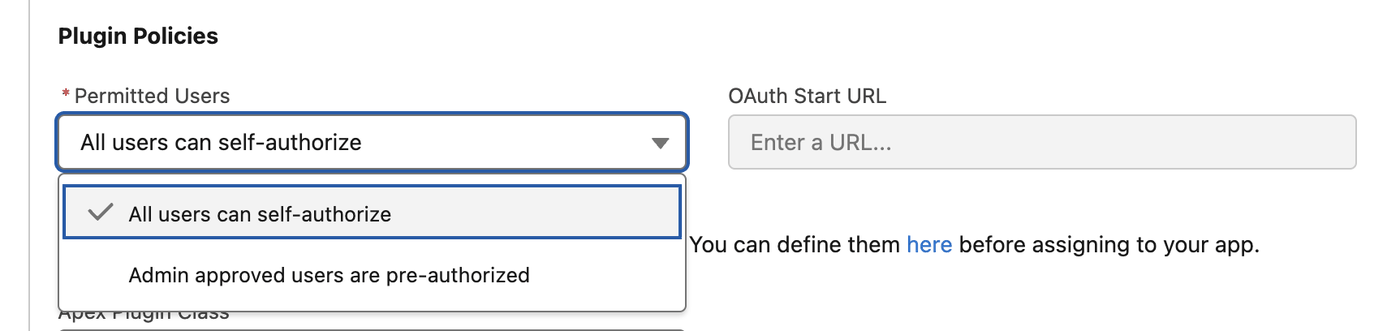
Figure 10 — Permitted Users options for the Perplexity app.
Step 4: Share the Consumer Key (Salesforce admin, about 2 minutes)
- In the app, open Settings → OAuth Settings → Consumer Key and Secret (shown in Step 2.6). Salesforce emails you a verification code.
- Copy the Consumer Key. If you turned on Require secret for Web Server Flow or Require secret for Refresh Token Flow in Step 2.7, also copy the Consumer Secret.
- On Enterprise plans, send the key, and the secret if you copied it, to your organization’s Perplexity administrator through your password manager or another approved secrets channel. On Pro or Max without a Perplexity organization, send them the same way to the person who completes Step 5, or keep them in your password manager if that’s you.
invalid_client_id.Step 5: Add the Consumer Key to Perplexity (Enterprise: your Perplexity organization admin, about 5 minutes)
These settings apply only to your organization. Other organizations use their own External Client App and their own settings.- In Perplexity, open Organization settings → Connectors.
- Search for Salesforce.
- Select the connector whose description starts with “Query, search, create, and update Salesforce CRM records.” If you don’t see it, the new Salesforce connector isn’t available for your organization yet.
- Click Manage setup. If you don’t see the button, open the row’s More options menu and choose Manage setup.
- Choose Use custom organization setup. If Setup method appears, select Enter credentials manually.
- Paste the Consumer Key. Leave the Consumer Secret blank unless you turned on a secret requirement in Step 2.7.
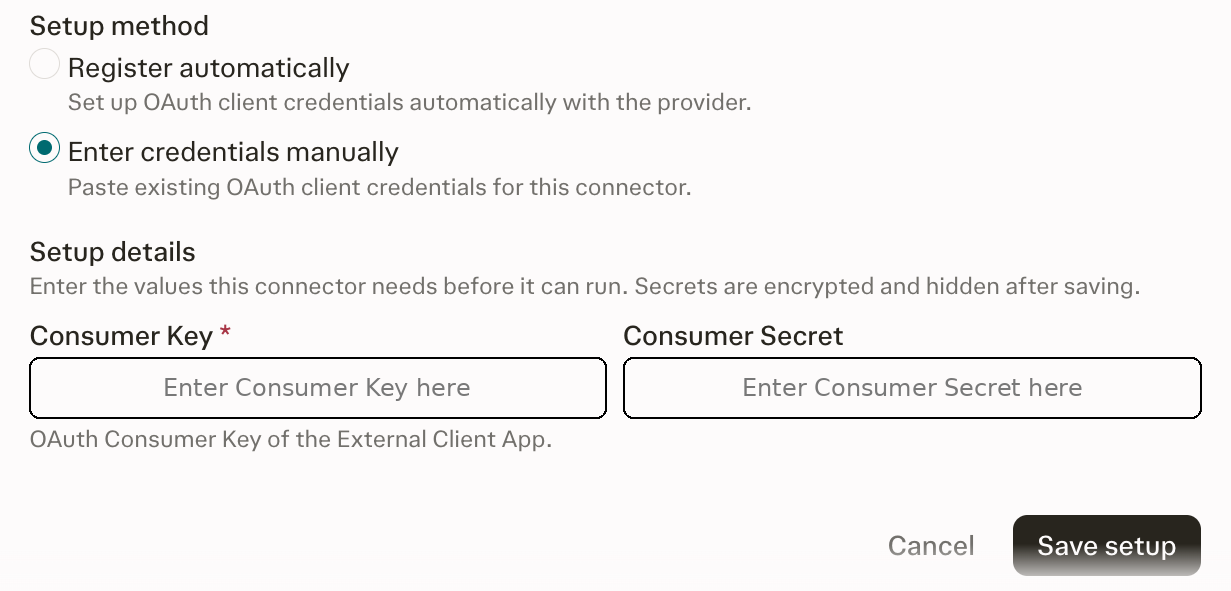
Figure 11 — The Salesforce setup form in Perplexity.
-
Optional: if your Salesforce org uses single sign-on, enter your My Domain URLs so users
go straight to your company’s sign-in page instead of clicking Use Custom
Domain:
-
Authorization Endpoint:
https://yourcompany.my.salesforce.com/services/oauth2/authorize -
Token Endpoint:
https://yourcompany.my.salesforce.com/services/oauth2/token -
Revocation Endpoint:
https://yourcompany.my.salesforce.com/services/oauth2/revoke
yourcompanywith your My Domain name. You can find it in Salesforce Setup under My Domain. Leave these fields blank to uselogin.salesforce.com. -
Authorization Endpoint:
- Click Save setup, then click Continue to confirm.
Step 5 (without a Perplexity organization): Add the Consumer Key yourself (about 5 minutes)
If you’re on Pro or Max and not part of a Perplexity organization, you add your own External Client App’s Consumer Key. You still need a Salesforce System Administrator to complete Steps 1 to 4. If you don’t have a company Salesforce org, you can sign up for a free Salesforce Developer Edition org. You’re its System Administrator, so you can complete Steps 1 to 4 yourself.- Open the Salesforce connector. The connector shows Personal setup required.
- Open the Manage setup tab and choose Use custom setup. If Setup method appears, select Enter credentials manually.
- Paste the Consumer Key. Leave the Consumer Secret blank unless you turned on a secret requirement in Step 2.7. Optionally add your My Domain URLs, as described in Step 5.7.
- Click Save setup, then click Continue to confirm. Then continue with Step 6.
Step 6: Connect your account (each user)
- Open the Salesforce connector in Perplexity and click Add connector (or Connect).
-
Sign in to Salesforce and approve access. If My Domain URLs were added in
Step 5, you go straight to your company’s sign-in page.
Otherwise, if your company uses single sign-on, click Use Custom Domain
on the Salesforce sign-in page, enter your company’s domain, such as
yourcompany, and sign in. See Use the correct login URL.
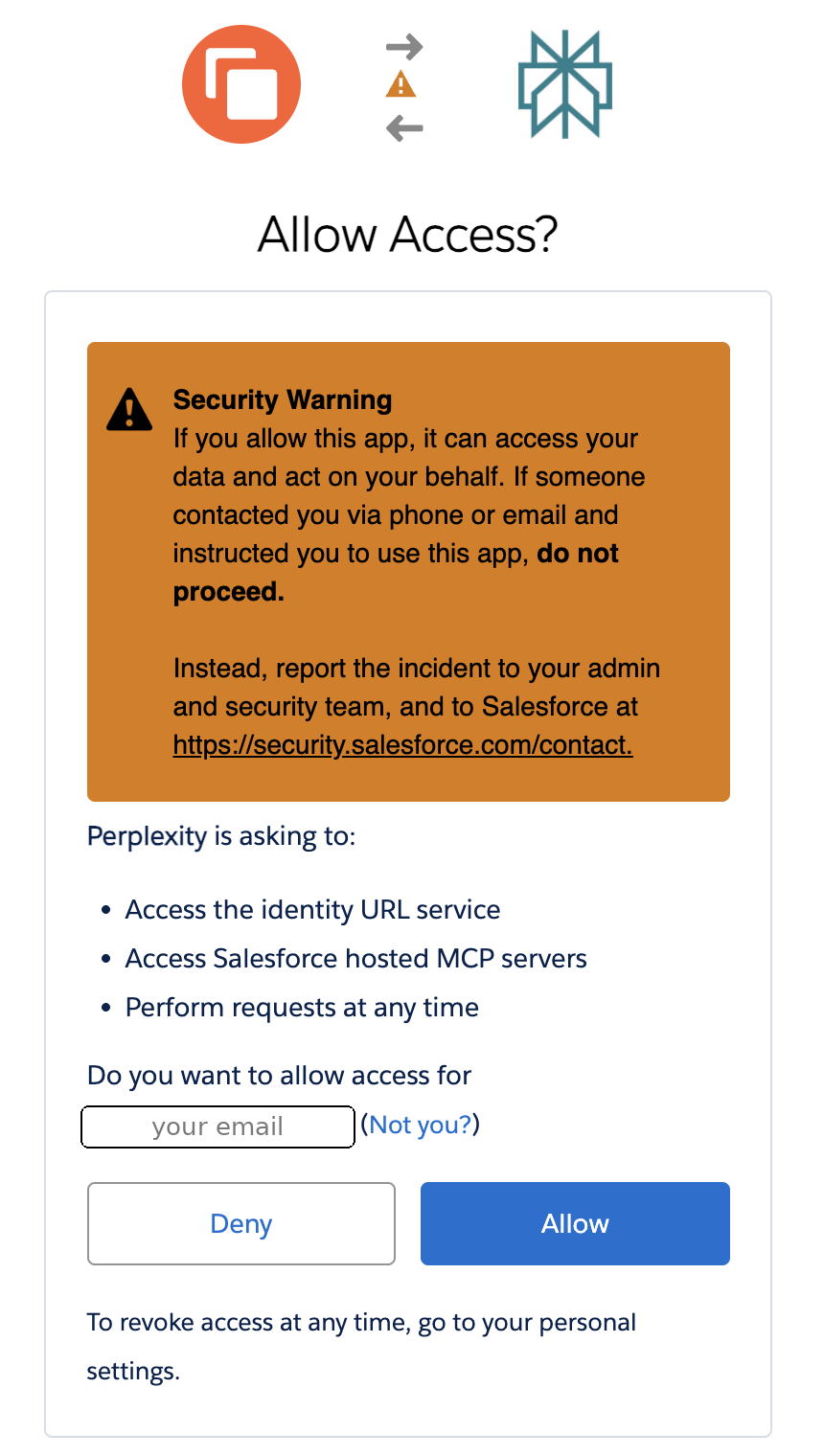
Figure 12 — Salesforce asks you to allow access the first time you connect.
How to verify it worked
- In a new session, ask: “Using Salesforce, who am I logged in as?” Perplexity should reply with your name and role in Salesforce.
- Ask: “List my 5 most recently viewed accounts.”
-
Optional: ask Perplexity to create a test Salesforce Task record, then
delete it, and check that Salesforce’s audit trail shows your name. A Read Only user’s write attempt
should fail with
INSUFFICIENT_ACCESS_OR_READONLY.
Trying it out
- “Show my open opportunities closing this quarter, sorted by amount.”
- “Update the stage on the Globex opportunity to Negotiation.”
- “Every Monday, summarize opportunities that changed stage last week.”
Permissions and scopes
Troubleshooting
Frequently asked questions
What data does the connector access?
Only what the signed-in user can already access in Salesforce, through the actions listed in Permissions and scopes. Profiles, permission sets, field-level security, and sharing rules all still apply.Can Perplexity write to Salesforce?
Yes, if the user’s Salesforce permissions allow it. To limit this, give users a narrower permission set or profile.Can my administrator restrict who uses this connector?
Yes, on both sides. In Salesforce, use Permitted Users with a permission set. On Enterprise plans, your organization’s Perplexity administrator can turn the connector off for the organization. Users’ stored sign-in tokens are kept until each user disconnects, so to remove everyone’s access at once, block the External Client App in Salesforce. To see who has connected or to revoke tokens, use Manage External Client App OAuth Usage.How long is data kept after I disconnect or the connector is turned off?
When you disconnect, Perplexity deletes your stored Salesforce sign-in tokens. If your organization’s Perplexity administrator turns the connector off, users’ tokens are kept until each user disconnects. To remove everyone’s access at once, your Salesforce administrator can block the External Client App. Sessions that include Salesforce results follow your session retention settings. See Data Retention for Enterprise.I used the earlier Salesforce connector. What changes?
You’ll be asked to reconnect once, after the Consumer Key is added in Step 5, either by your organization’s Perplexity administrator or, on Pro or Max without an organization, by you. Your existing connection can’t move over automatically, because the new connector uses your Salesforce org’s own app.Will my Salesforce data be used to train AI models?
No. Data accessed through the Salesforce connector is never used to train Perplexity’s models or any third-party model.Is this connector available on my plan?
Yes, on the Pro, Max, Enterprise Pro, and Enterprise Max plans. Your Salesforce org must be Enterprise Edition or above, or a Developer Edition org for testing.Related articles
- Perplexity Connectors for Enterprise: FAQ
- Role-based access control for connectors
- Enterprise Connector Troubleshooting Guide
- Connecting Perplexity with Snowflake