

The Connector for Slack is a new feature for Perplexity users that integrates Slack with your team’s workflows by searching and synthesizing insights from conversations, internal files and external sources in one place.
It integrates Slack directly with Perplexity’s enterprise productivity features, enables streamlined collaboration, and supports advanced workflow automation. You can instantly discover relevant information across your organization’s documents, connected apps, and the web, without exhaustive manual searches or context switching.
Below you’ll find an overview of this Connector and how to activate it.
What does the Connector for Slack do?
The Connector for Slack for Perplexity enables seamless data flow between Slack and Perplexity, supporting a wide range of use cases and adapting to your organization’s workflows. It supports multiple channels, allowing your organization to integrate Perplexity with several Slack channels simultaneously.
You can trigger automated actions, receive real-time notifications, and process contextual data from Slack conversations you have access to. This significantly reduces the time you spend analyzing and cross-referencing data.
The Connector for Slack allows you to summarize and extract insights from Slack messages. You can then combine these insights with web data for contextually richer responses, and then post back your findings to any connected Slack channel directly from Perplexity.
Please note that information in answers comes from online sources and may not always be accurate. We summarize this information to provide our responses.
To maintain control over how Perplexity interacts with Slack, organization admins can enable or disable the connector for all organization users.
Who can use the Connector for Slack?
The Connector for Slack is available to Perplexity Pro, Perplexity Max, Enterprise Pro and Enterprise Max users.
Our plans start at:
Perplexity Pro: $20/month or $200/year
Perplexity Max: $200/month or $2,000/year
Or, for organizations:
Enterprise Pro: $40/month or $400/year per seat
Enterprise Max: $325/month or $3,250/year per seat
This article explains what subscription is best for you based on your needs.
Additionally, if you want to use Perplexity within Slack, you’ll need a paid Slack plan to install the Perplexity integration.
Privacy and data security
The Slack Connector requires the following permissions to function:
Information Perplexity can view
Content and Info About You
View information about your identity
Content and Info About Channels & Conversations
View messages and other content in your public channels, private channels, direct messages, and group direct messages
Search your workspace’s content in public channels
Search your workspace’s content in private channels
Search your workspace’s content in group direct messages
Search your workspace’s content in direct messages
Search your workspace’s files
Content and Info About Your Workspace
Search your workspace’s users
Access your workspace’s canvases, comments, and associated information
View people in your workspace
View email addresses of people in your workspace
Actions Perplexity can take
Perform Actions as You
Send messages on your behalf
Perform Actions in Channels & Conversations
Create, edit, and remove canvases
The Slack Connector respects Slack’s user permissions, so you can only access channels and messages through Perplexity that you can already access in Slack.
We offer enterprise-grade protections and compliance including SOC 2 Type II certification, end-to-end encryption, strict data privacy measures, and granular user access controls. Your emails and calendar data, just like any other Enterprise data, are never used for AI training, and robust safeguards ensure confidentiality and regulatory compliance. You can learn more in our Trust Center.
Additionally, admins in eligible organizations can view all submitted queries that use the Slack Connector, and see every source used to generate answers, within Audit Logs. However, answers themselves and the specific Slack documents accessed are not currently tracked in Audit Logs.
How to activate it
To activate the Connector for Slack:
Open Plugins in the sidebar (or Customize → Connectors if you don’t see Plugins yet). Find the Slack connector on Discover or search for it by name, then open its page.
Select Connect.
Slack then prompts you to log in and to grant some permissions to the connector. These will allow the connector to read information and perform actions on your behalf in the Slack workspace. Click Allow to continue.
Click Finish setup.
This connector can also appear inside a plugin. Connecting it anywhere connects it for your account everywhere, and your connection and your organization’s connector settings apply inside every plugin. See What are plugins?
If you can’t connect the Connector for Slack on your account, an admin may have disabled it for your organization. Get in touch with an organization admin who will be able to confirm this.
If it’s enabled for your organization but you still experience issues, contact us.
Trying it out
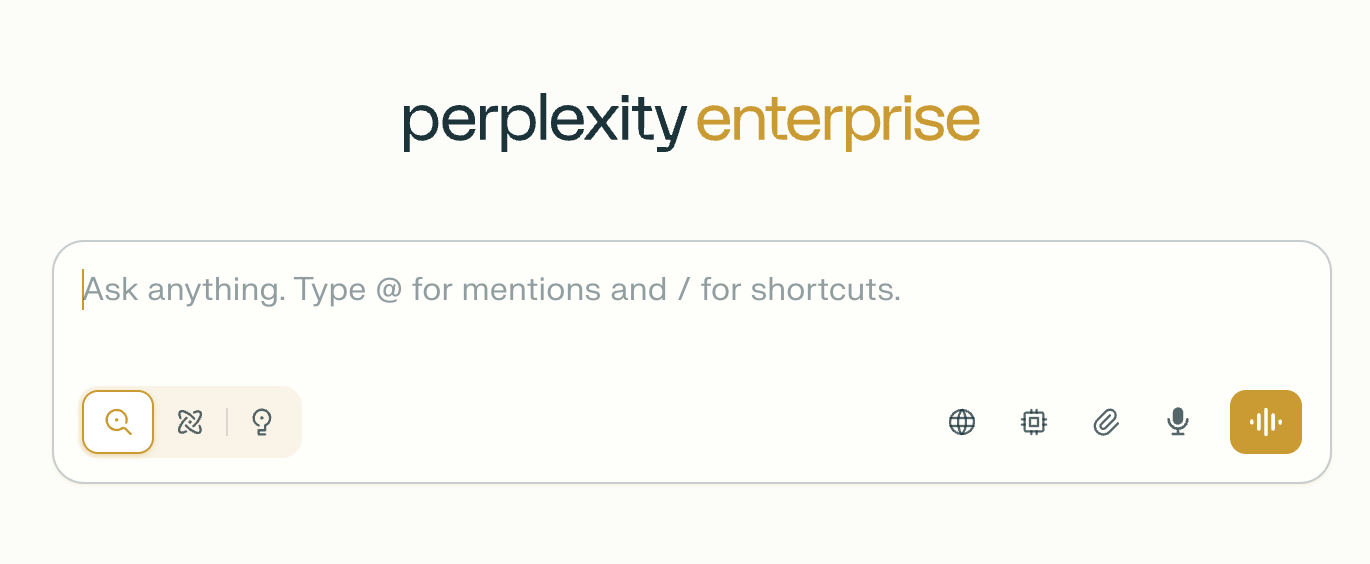
Once you have connected Perplexity to Slack, ensure that you select it as a source when running a query from a session:
Click Set sources for search.
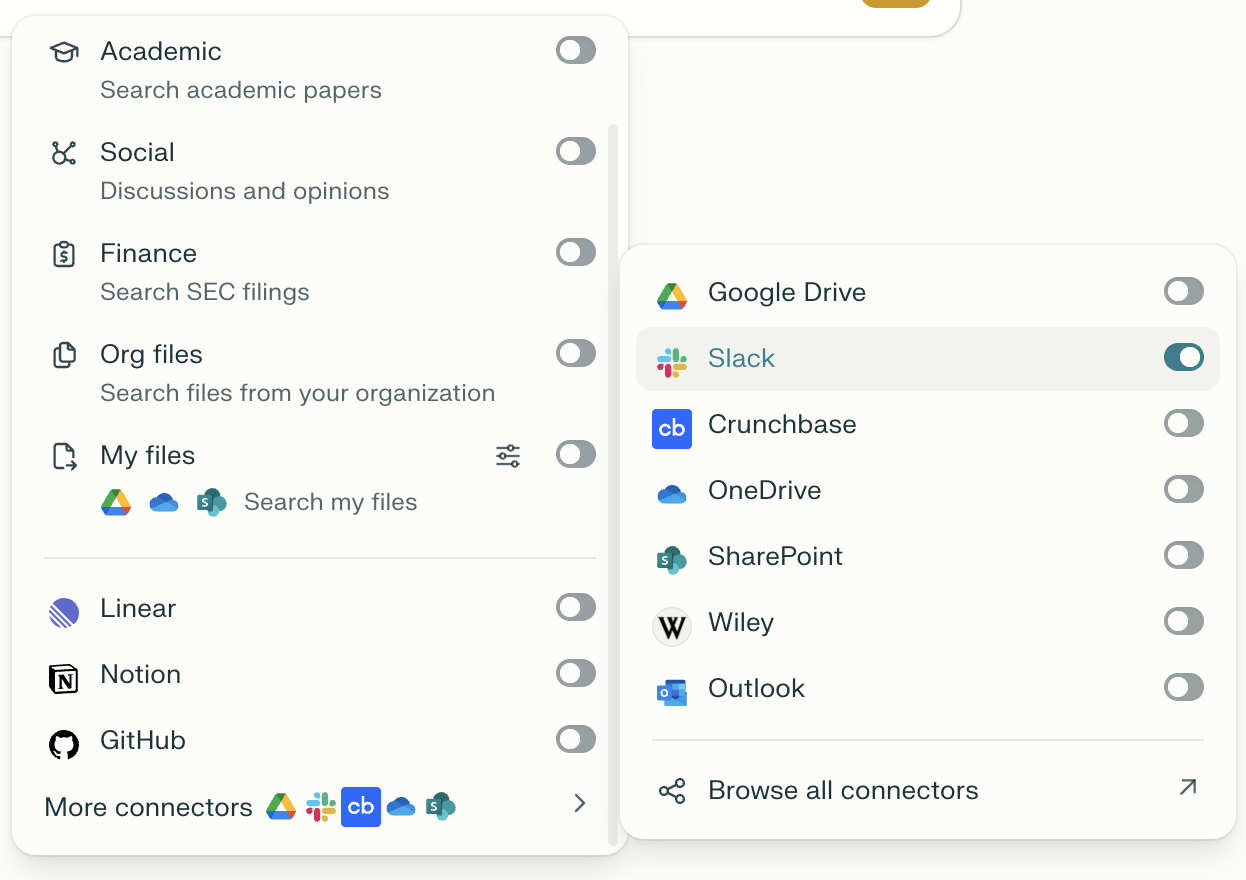
Select Slack and any other source you’d like to use.
Try running some of these queries to use your Slack information directly in your answers:
What Slack messages did I write on August 26
How many people did I message today?
Find messages with customer feedback
List the 10 most recent messages that mention <topic>
What’s the latest status of the operational excellence project?
Summarize my conversations with <user>
Summarize all relevant Slack messages for me from yesterday
Create a Slack post in <channel 1> with a summary of all the actions taken by the team yesterday in <channel 2>
What is our CSAT score? How does it compare with best practices in the Enterprise SaaS project?
Using Perplexity within Slack
You can also get personalized, actionable, and reliable answers from your Slack conversations and the web without leaving Slack.
To set up your Slack integration:
Install Perplexity Computer from Slack’s Apps directory. You can add apps at the bottom of Slack’s left panel. Please note that you’ll need a paid Slack plan to install this app.
Click Add to Slack.
Review the permissions the app requires and click Allow.
You’ll be redirected to a Perplexity confirmation page once installation is complete.
You can read more about the Perplexity Slack app in this article.
Slack Connector vs. Perplexity Slack App
Perplexity offers two distinct Slack integrations that serve different purposes and work best when used together.
The Connector for Slack brings your Slack data into Perplexity. Once connected, you can select Slack as a source when running queries in Perplexity sessions. You can then search and synthesize insights from Slack conversations alongside web sources, all from within the Perplexity web app. It is available to Pro, Max, Enterprise Pro, and Enterprise Max users, and can be enabled or disabled by organization admins.
The Perplexity Slack App works in the opposite direction — it brings Perplexity’s AI capabilities into Slack. Powered by Computer, it lets you ask questions, run agentic tasks, and automate workflows without leaving your Slack workspace. It is currently available to users with access to Perplexity Computer, and requires a paid Slack plan to install.
Slack Connector | Perplexity Slack App | |
Where you work | Perplexity web app | Slack |
What it does | Searches Slack content as a source in Perplexity | Brings AI answers & Computer agents into Slack |
Who can use it | Pro, Max, Enterprise Pro, Enterprise Max | Users with Computer access |
Requires paid Slack plan? | No | Yes |
Admin controls | Org admins can enable/disable | Standard Slack app management |
The two integrations are fully compatible — you can use both simultaneously for a seamless bidirectional workflow.
If you have any questions about how we handle your data, you can find Perplexity’s Privacy Policy here.