

This guide walks Enterprise administrators and IT managers through role-based access control for connectors on the Organization settings → Connectors page. It covers the Enabled toggle, per-connector role lists, the enable flow, backfill behavior, and the organization-wide default for new connectors.
Overview
Role-based access control lets you decide which roles in your organization can use each connector, adding to the existing control over whether the connector is available to your organization at all. It replaces the previous “on for everyone or off for everyone” model with a targeted grant that follows the same role and group structure documented in Enterprise roles and permissions.
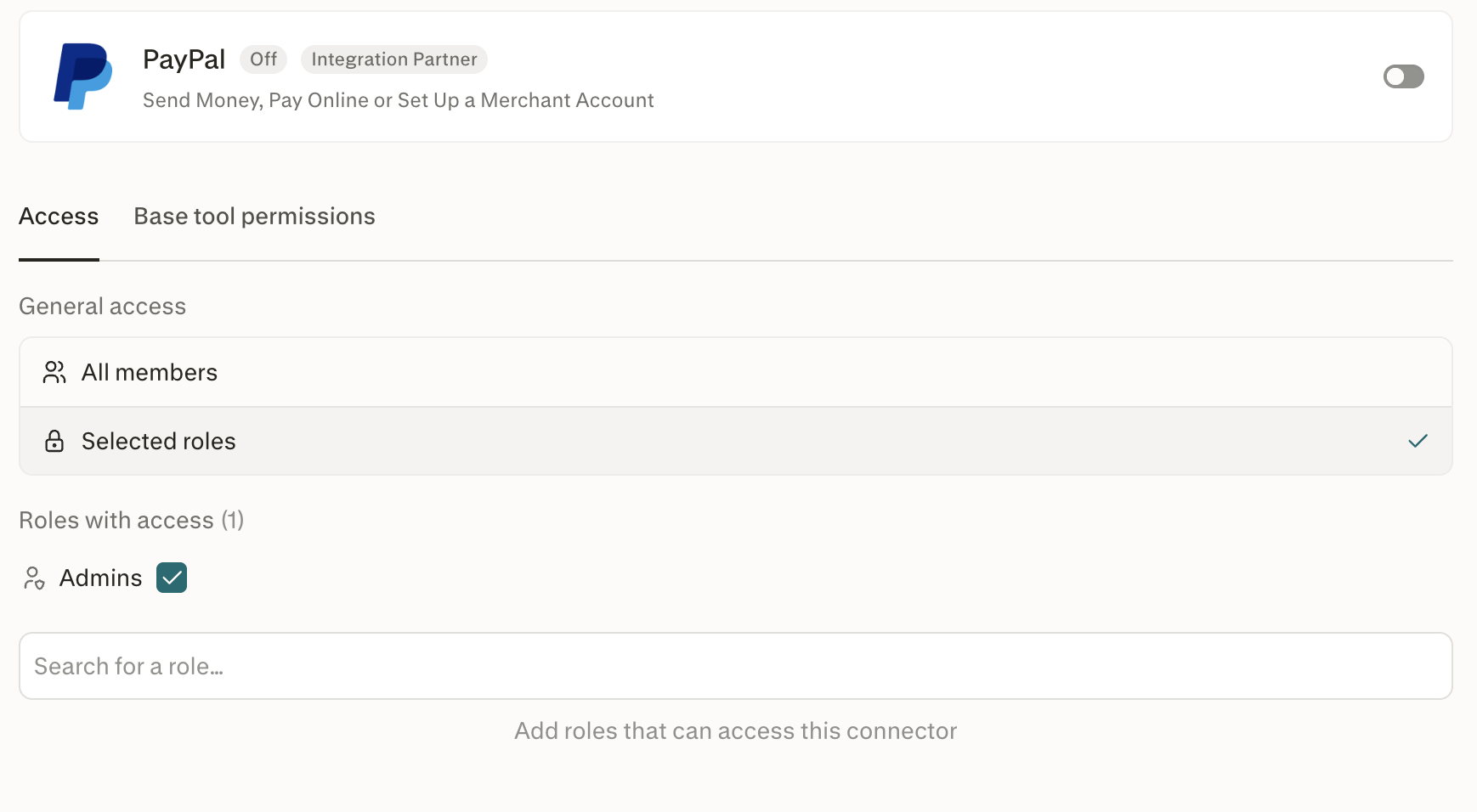
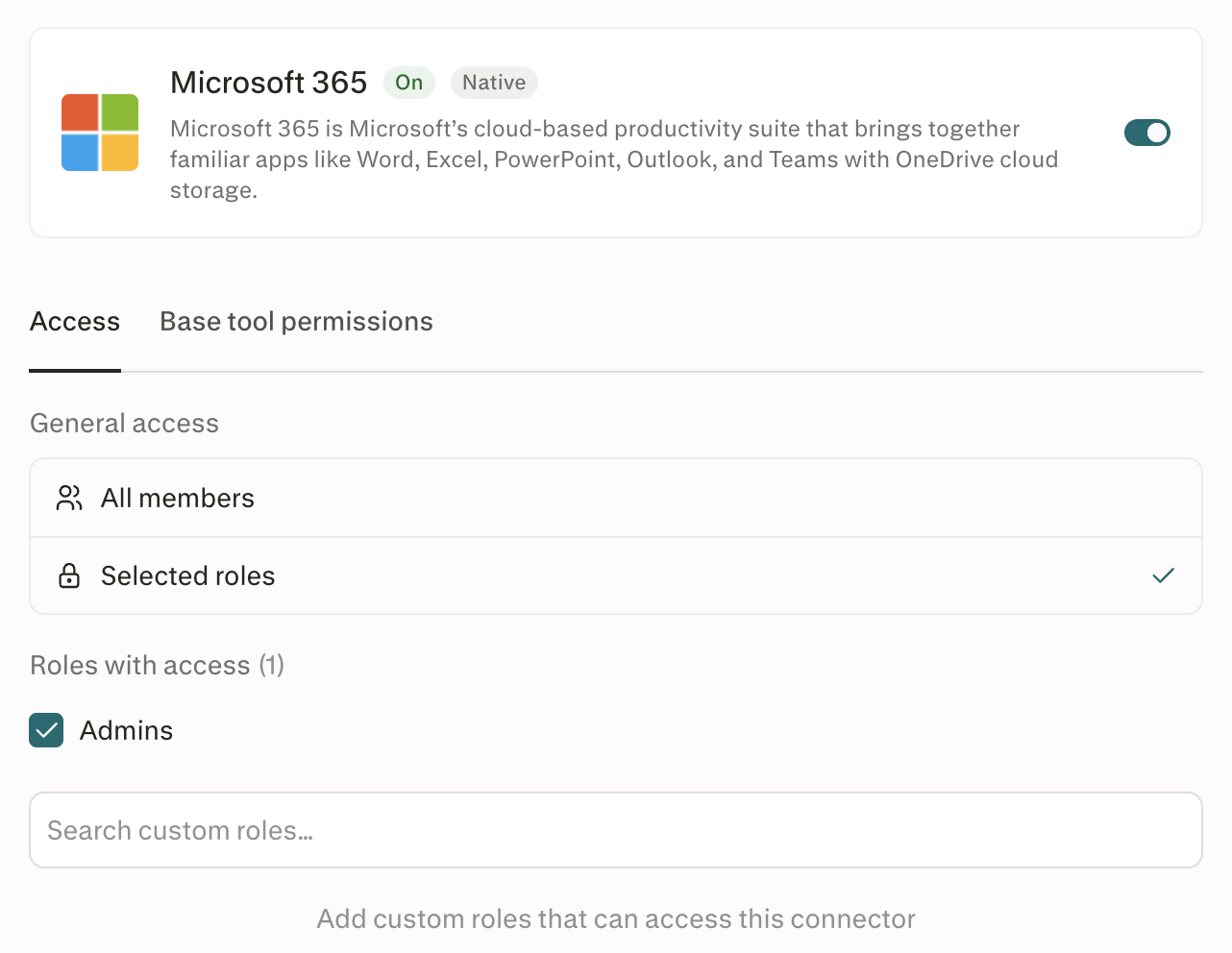
Each connector has two independent controls:
Enabled: The global switch for the connector. When off, the connector is unavailable to every member, regardless of role. When on, you choose who can access it.
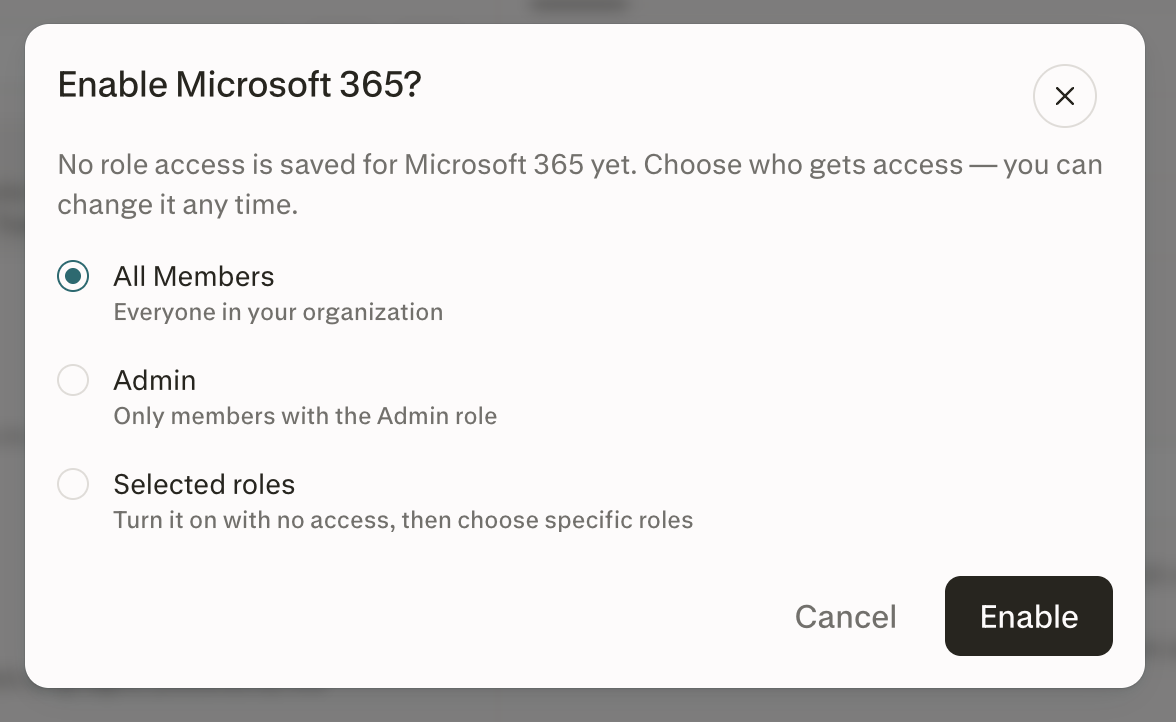
Role access: When enabling a connector, choose All Members, Admin, or Selected roles. All Members gives everyone access. Admin limits access to members with the Admin role. Selected roles lets you limit access to particular custom roles. You can assign roles before or after you enable the connector. If you choose Selected roles when enabling, you need to specify the roles after enabling. An enabled connector is only accessible if at least one role is assigned.
A member can access a connector only when the connector is Enabled and at least one of their assigned roles is included in its role list.
Configuring these controls requires the Manage connector defaults role permission, documented in Enterprise roles and permissions.
Availability: Role-based access control for connectors is available on sales-assisted Enterprise plans. Custom roles, group management, and SCIM directory group sync also depend on your organization’s plan.
If you’re interested, book a demo with our sales team.
Why it matters
Scope sensitive data. Grant Snowflake to a data science role, Microsoft 365 to a knowledge team, and Salesforce to revenue operations, without exposing them to everyone in the organization.
Run staged pilots. Enable a new connector for a pilot role first, gather feedback, then widen access by adding more roles.
Stay aligned with SCIM and groups. Because access is driven by roles, group and SCIM assignments made in your identity provider flow through automatically.
Before you start
You are an administrator, or your role includes the Manage connector defaults permission.
You have access to Organization settings → Connectors on the web.
The connector you want to configure is already added to your organization.
How the controls work
Base roles: All Members and Admin
Every organization has two base roles you can add to a connector’s role list.
All Members — grants access to every member of the organization.
Admin — grants access to organization admins only. When General access is set to Selected roles, Admins always appears under Roles with access with a checkbox to turn its access on or off.
You can add either base role to the list on its own, together, or alongside custom roles created for your organization.
When All Members is on the list, every member already has access, so any custom roles on the same list are redundant. Perplexity does not remove those custom roles, so if you later remove All Members, the connector falls back to them instead of becoming inaccessible.
For example, if a connector’s role list is All Members + Data Science:
While All Members is on the list, everyone in the organization has access.
If you remove All Members, only members of the Data Science role keep access.
Administrators always retain latent access to configure any Enabled connector, even when the Admin role is not on its role list. Runtime access, the ability to actually use the connector in a session, still requires Admin to be on the list.
Enabling a connector without granting access
Choosing Selected roles turns on the connector without adding any roles. The connector remains enabled, but no members can use it until you add at least one role.
Choosing All Members or Admin grants access immediately when the connector is enabled.
How access is determined
When a member tries to use a connector, Perplexity checks:
Is the connector Enabled? If not, access is blocked.
Is at least one of the member’s roles on the connector’s role list? If so, access is allowed.
Otherwise, access is blocked with a clear reason.
Perplexity enforces access server-side, before the agent runtime starts, so blocked connector calls do not consume credits or start a sandbox. Enforcement applies consistently across the agent, CLI, scheduled tasks, and any Project- or Brain-scoped connector usage.
Step-by-step
Enable a connector and grant access
Go to Organization settings → Connectors.
Select the connector you want to enable.
Toggle on the connector. A dialog opens asking who should have access.
Choose All Members, Admin, or Selected roles.
Select Enable.
If you chose Selected roles, open the connector and add the roles that should have access.
Choosing All Members or Admin grants access immediately. Choosing Selected roles leaves the connector enabled without role access until you add one or more roles. If you cancel the dialog, the connector stays disabled.
Add a role to an Enabled connector
Open the connector from Organization settings → Connectors.
On the Access tab, make sure General access is set to Selected roles.
In the Search for a role… field below Roles with access, search for the role you want to give access.
Select the role to add it to Roles with access.
Members of the newly added role gain access immediately.
Remove a role from an Enabled connector
Open the connector from Organization settings → Connectors.
On the Access tab, under Roles with access, locate the role you want to remove.
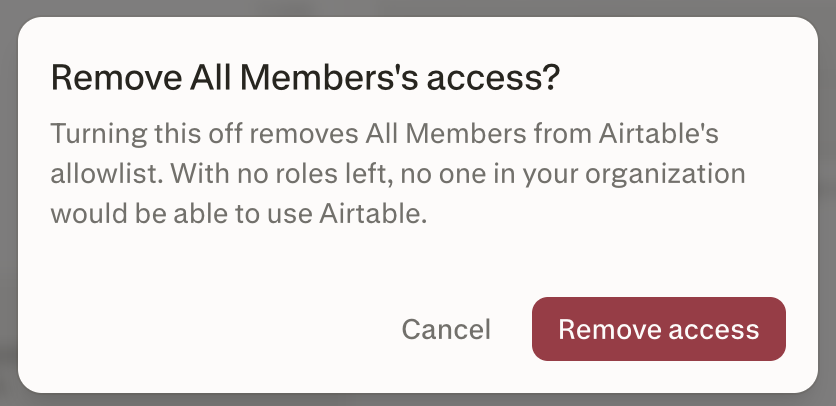
Clear the checkbox next to the role. A confirmation dialog names the role and the connector.
Select Remove access.
Members of that role lose access immediately, unless another role on the list also covers them.
Disable a connector
Open the connector from Organization settings → Connectors.
Toggle off the connector to disable it. The confirmation dialog names the connector, lists the roles that will lose access, and notes that role settings will be saved.
Select Disable.
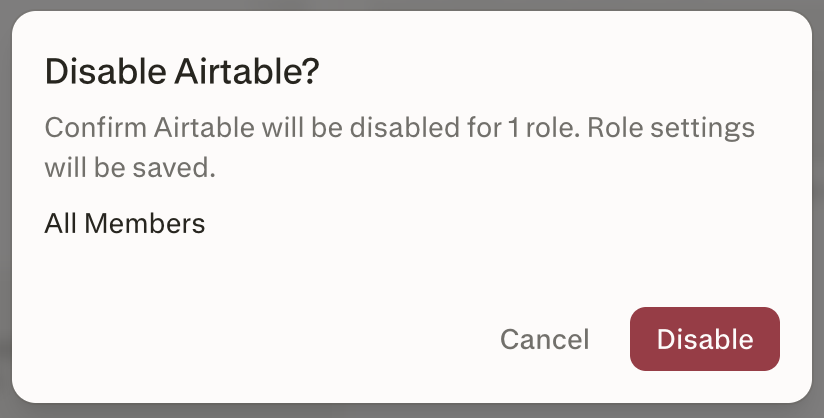
The connector is now Disabled and no member of the organization can use it. Its role settings are saved, so if you turn the connector back on later, the same roles get access again.
Set the global default for new connectors
The global default governs what happens when Perplexity ships a new connector into your organization. Set it once at the organization level.
Go to Organization settings → Connectors.
Find the New connectors setting near the top of the page, below Allow members to add custom connectors. It controls whether connectors newly added to Perplexity start enabled for your organization.
Open the dropdown and choose one of:
Enabled for All Members — the new connector arrives Enabled with All Members on its role list.
Enabled for Admins — the new connector arrives Enabled with Admin on its role list.
Disabled — the new connector arrives Disabled with an empty role list. An administrator must enable it for specific roles or for all members before anyone can use it.
Recommended default for Enterprise organizations: Disabled. This ensures an administrator reviews new connectors before members can use them.
How to verify it worked
On the connector’s Access tab, Roles with access lists the expected roles, and its count matches the number of roles you added.
Members whose roles are on the list can use the connector. Members whose roles are not on the list see a clear “no access” message.
The organization’s audit logs record the enable, disable, and role changes under the relevant Connectors event.
Backfill behavior at launch
When your organization is upgraded to role-based access control for connectors, Perplexity migrates existing connectors as follows.
Currently disabled connectors stay Disabled with an empty role list. An administrator must enable each connector for specific roles or all members before anyone can use it.
Currently enabled connectors are migrated to Enabled with All Members as the only role on the list. Custom roles are not backfilled onto the list.
This preserves current member reach on day one and gives administrators a clean starting point to tighten access. To restrict an already-enabled connector to specific roles, remove All Members and add the roles you want.
Member experience
In Discover, connectors a member can’t use appear dimmed with a lock icon and a hover reason. Connectors a member cannot use show as unavailable on the connector’s own page and do not appear in connector pickers. The message depends on the connector’s state:
Connector Disabled — the Discover card and the plugin page both show Disabled by your organization.
Connector Enabled, but none of the member’s roles is on the list — the Discover card says “Not available to your role”; on the plugin page the connector shows Unavailable.
Plan limit — the connector shows Upgrade required with the tooltip “Your plan does not include this connector”.
To get access, members can ask an administrator to add one of their roles to the connector’s role list.
If the agent reaches a blocked connector mid-session, it tells the member their role doesn’t have access and suggests asking an administrator.
Common configurations
The following table shows three access policies Enterprise administrators typically apply.
| Policy | Enabled | Role list |
|---|---|---|
| Available to the whole organization | On | All Members |
| Available to admins only | On | Admin |
| Pilot rollout to a custom role | On | Data Science (custom role) |
Caveats to be aware of
No per-user allow or deny. Access is driven by role membership. You cannot allow or deny a single member independently of their roles.
One role on the list is enough. Roles grant access; they never take it away. A member with two roles has access to the connector if either of those roles is on the list, so you can’t add one role to allow access and a second role to block it.
Tool-level permissions are separate. Whether a member can call individual tools within a connector (for example, Slack send versus Slack search) is governed by the connector’s tool permissions, configured on its Base tool permissions tab. Role-based access control decides who reaches a connector at all; tool controls decide what runs inside it.
All Members supersedes custom roles. When All Members is on the list, custom roles on the same list are redundant. They are kept so that removing All Members returns the connector to the previously configured custom-role set.
Deleting a custom role affects every connector that role appears on. If the role is the only entry on a connector’s role list, the connector stays Enabled, but no one can use it until you add another role.
Disabled connectors keep their role list. If you disable a connector and later turn it back on, the roles that had access before get access again. To change who has access, edit the roles on the Access tab before or after you turn it on.
OAuth grants are unchanged by role-based access control. Removing a role from a connector does not revoke third-party OAuth grants members have already completed. To revoke an OAuth grant, disconnect the account under Plugins → Installed or revoke it in the provider’s admin console.
Connectors in plugins
Plugins are rolling out gradually, starting with individual plans and Self-Serve Enterprise organizations, and are coming soon to sales-assisted Enterprise plans. Until then, members and admins keep using Connectors and Skills.
Role grants and the Enabled toggle apply to connectors inside plugins. A plugin cannot bypass these controls or grant connector access.
The plugin stays visible on the Plugins page. Each blocked connector shows Disabled by your organization or Unavailable, or Upgrade required for plan limits. Members can install the plugin and use its other components. To stop members from using a tool, disable the connector, not the plugin.
Troubleshooting
| Symptom you see | Most likely cause | How to fix it |
|---|---|---|
| A member cannot use a connector you expected them to. | None of the member’s roles is on the connector’s role list. | Open the connector and add a role the member holds, or add the member to a role that is already on the list. |
| A member still has access after you removed a role. | Another role on the connector’s list still covers them, or they belong to a group assigned to a role on the list. | Review every role and group the member holds and remove the additional grant if appropriate. |
| A connector is Enabled, but no one can use it. | The connector is set to Selected roles with no roles selected, or its only role was deleted. | Open the connector, then add a role on the Access tab or switch General access to All members. |
| A newly launched connector is available to everyone before you review it. | The organization’s New connectors setting is Enabled for All Members. | Change New connectors to Disabled so new connectors arrive Disabled and require administrator review. |
| An admin cannot use a connector but can configure it. | The Admin role is not on the connector’s role list. | Add Admin to the role list to grant runtime access, separately from the latent configure access admins already have. |
| A SCIM-synced group’s members lose access after an identity provider change. | The group’s members changed in the identity provider and the change synced through. | Verify group membership in your identity provider. SCIM-synced groups are read-only in Perplexity. |
Frequently asked questions
Can I grant a connector to a single user without creating a role?
Can I grant a connector to a single user without creating a role?
No. Access is driven by roles, and per-user allow or deny is not currently available. Create a custom role for the responsibility, assign the user to it, and add that role to the connector’s role list.
Can I block a specific role from a connector while other roles keep access?
Can I block a specific role from a connector while other roles keep access?
No. Roles on the list grant access, and there is no way to add a role as a block. If a member holds two roles and either one is on the list, they have access. To keep a role out of a connector, leave it off the role list.
Do disabled connectors still show up for members?
Do disabled connectors still show up for members?
Yes. Members can open a blocked connector’s page from a plugin that includes it. The page shows Disabled by your organization, Unavailable, or Upgrade required for plan limits. In Discover, connectors a member can’t use appear dimmed with a lock icon and a hover reason. Blocked connectors do not appear in connector pickers.
What happens to existing connectors when my organization is upgraded to role-based access control for connectors?
What happens to existing connectors when my organization is upgraded to role-based access control for connectors?
Nothing changes for members on day one. Connectors that were already disabled stay Disabled. Connectors that were already enabled stay Enabled, with All Members as the only role on the list, so every member who could use them before still can. To scope one of those connectors to specific roles, open it, switch General access to Selected roles, and add the roles that should have access.
Are role and connector changes recorded in the audit log?
Are role and connector changes recorded in the audit log?
Yes. Enable, disable, role additions, role removals, and changes to the global default are recorded in the organization’s audit logs. See Audit Logs.
Does role-based access control for connectors apply to the CLI, scheduled tasks, and Projects?
Does role-based access control for connectors apply to the CLI, scheduled tasks, and Projects?
Yes. Enforcement is applied server-side and applies consistently to agent sessions, the CLI, scheduled tasks, and any Project- or Brain-scoped connector usage.
Who can configure role-based access control for connectors?
Who can configure role-based access control for connectors?
Administrators, and any member whose role includes the Manage connector defaults permission. This is the same permission used for the connector’s tool-level controls.
Related articles
Need more help?
Reach out to your account team or contact us via Help > Contact Support. Visit the Trust Center for security and compliance documentation.