Learn how Computer works for Enterprise, including setup, connectors, credits, admin controls, and security
Perplexity Computer is an independent digital worker available to Perplexity
Enterprise users. Rather than only answering questions, Computer takes action:
synthesizing large amounts of information across the web and your
organization’s work context through hundreds of app connectors, then executing
multi-step workflows on your behalf.Computer can create assets, manage emails, conduct research, and more — all in
the background, even when you’re off the clock.Computer is available via the Perplexity web
app, giving your team access across
platforms.
Computer combines several capabilities to complete complex tasks:
Asynchronous execution — Computer runs tasks in the background. It can
monitor email, calendars, flight status, and files with condition-based
triggers, and supports scheduled jobs and proactive actions like morning
briefings and deadline reminders.
Wide Research and parallel web search — Handles queries that require
researching multiple items at the same time, for market research and
competitive analysis.
Sub-agents — Domain-specific assistants that handle distinct task types:
market research, financial analysis, and news monitoring, plus coordination
agents that orchestrate handoffs between specialists.
Premium data integrations — Computer connects with the tools your team
already uses, automating actions across productivity, engineering, data, and
finance.
Multi-tool orchestration — Coordinates multiple tools, retrieving and
synthesizing real-time information while handling multi-step reasoning and
complex task automation.
A single prompt can trigger research → analysis → document creation → email
delivery → scheduled follow-up.
A Project’s saved Computer model
applies to new sessions you start from that Project, not to scheduled runs. A
scheduled task carries its own model selection; if that model is no longer
available to your organization, the run falls back to Computer’s default model.
Research our top 5 competitors, compare their pricing, create a slide deck withthe findings, and email it to the team.
Computer will run parallel web searches, build a comparison table, generate a
branded presentation, and send it via your connected email — all in one
session.Each of these steps is powered by a
Skill — a reusable
instruction set that teaches Computer how to handle specific task types like
research, presentation building, and data analysis. Teams can also create
custom Skills to tailor Computer to their own workflows.
Computer for Enterprise is available on the Enterprise Pro and Enterprise Max
plans. If you are a Perplexity Enterprise user, you can access
Computer directly within your Perplexity
workspace.
1
Go to the Home page.
2
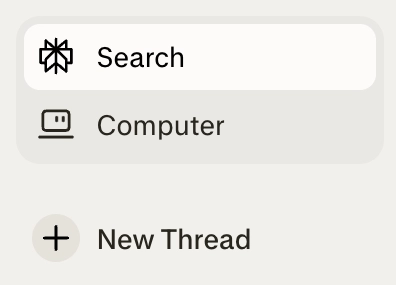
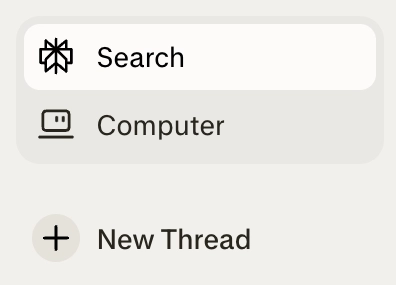
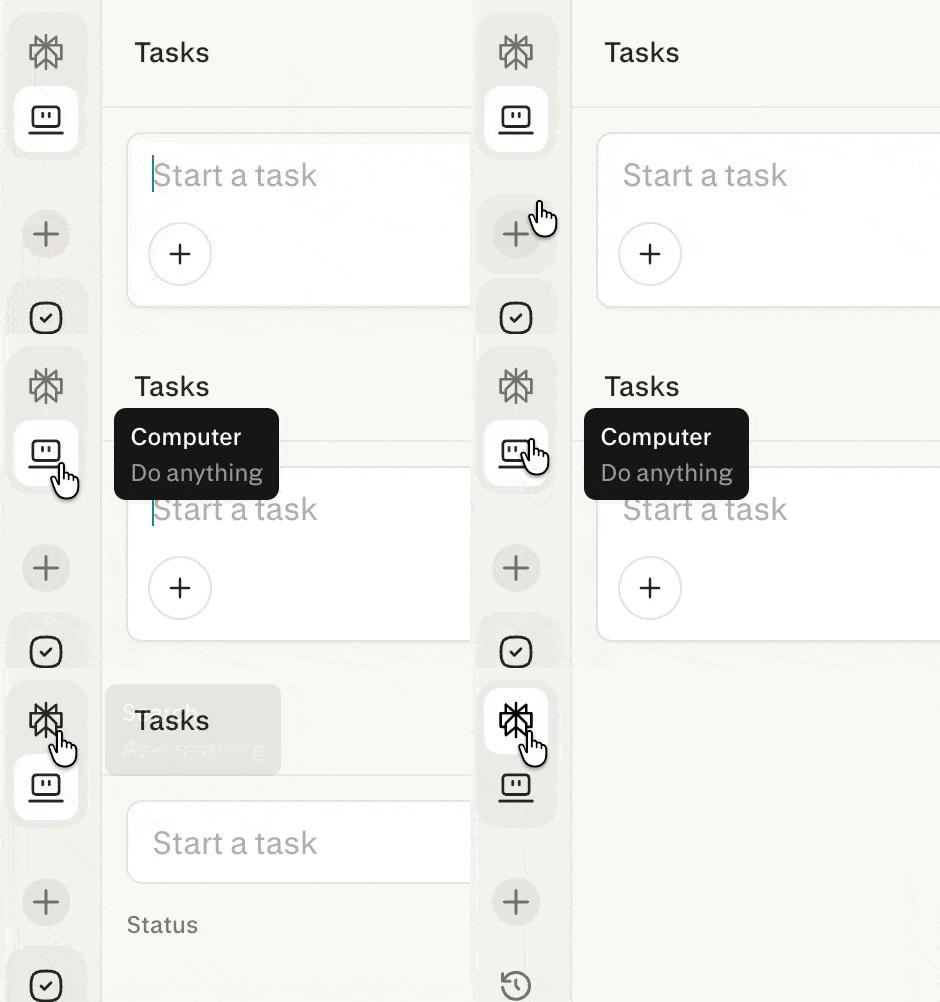
Select the Computer icon.
Figure 1 — The Computer icon in the Perplexity sidebar.
3
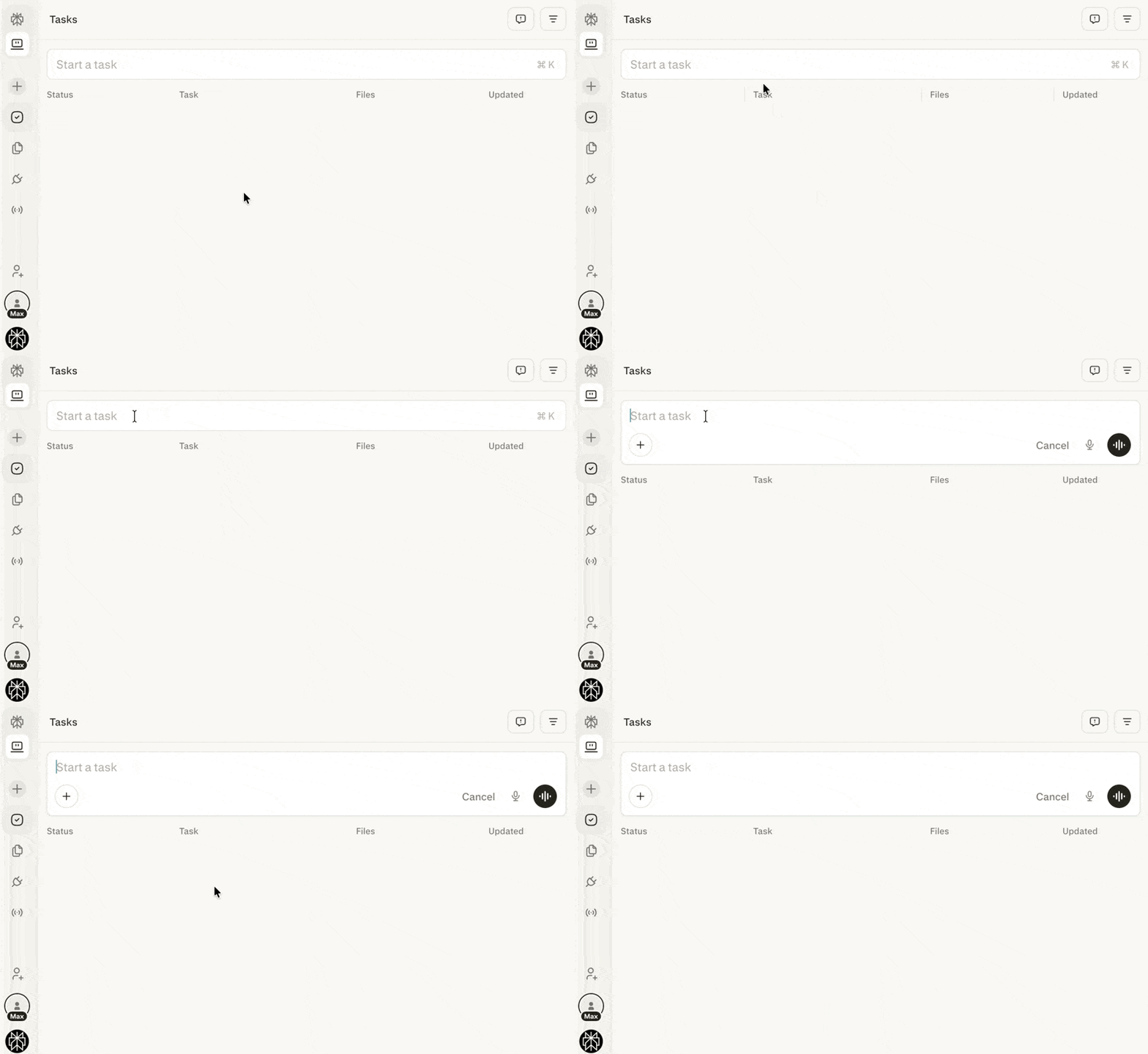
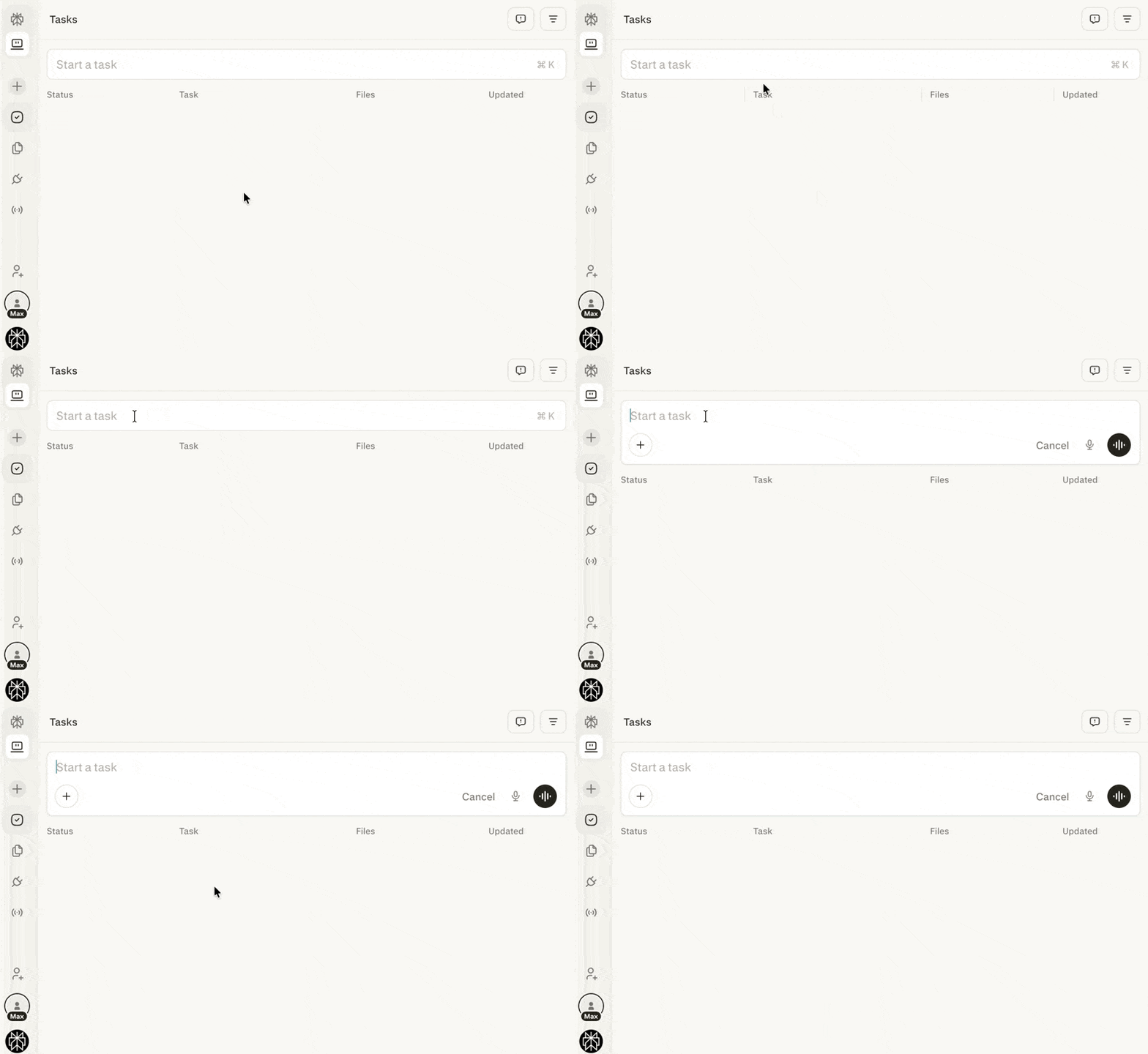
In Computer, select the Start a task field to create a new task.
Figure 2 — The Start a task field is the entry point for a new Computer task.
4
Select the Perplexity icon to return to Ask Anything mode and exit
Computer.
Figure 3 — The Perplexity icon returns you to Ask Anything mode.
Plugins are rolling out gradually, starting with individual plans and Self-Serve Enterprise organizations, and are coming soon to sales-assisted Enterprise plans. Until then, members and admins keep using Connectors and Skills.
Administrators control which connectors are available in Organization settings → Connectors.
1
Open Plugins in the sidebar (or Customize → Connectors if you don’t see Plugins yet) to view available apps and services.
2
Find the connector on Discover or by search, open its page, and select Connect.
3
To install a plugin, open it from Discover or search and select Install. Then select Connect next to each connector on the plugin page.
4
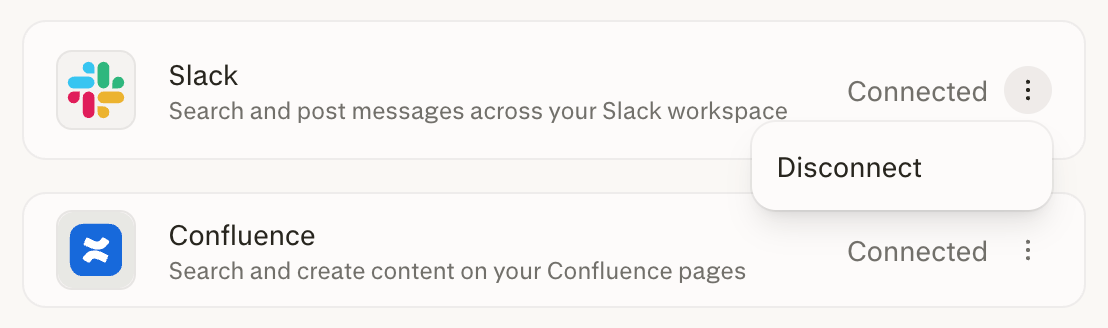
To disconnect an app, select the ellipsis (⋮) next to it, then choose
Disconnect.
Figure 6 — The ellipsis menu beside a connected app contains Disconnect.
Computer for Enterprise is not a standalone product — it is built directly on
top of Perplexity’s enterprise-grade platform, inheriting the security,
compliance, and governance capabilities your organization already relies on:
SOC 2 compliance — Computer operates within Perplexity’s SOC 2–certified
infrastructure, so controls around security, availability, and
confidentiality are continuously maintained.
Audit logs — All Computer activity, including task execution, connector
usage, credit consumption, and credit grants, is captured in your
organization’s audit logs, giving administrators visibility for compliance
and reporting.
Data retention policies — Computer adheres to your organization’s
configured data retention
settings. Data is
retained and purged in accordance with the policies your administrator has
established across the Perplexity Enterprise platform.
No training on your data — Your organization’s data is never used to
train Perplexity’s models. This guarantee extends fully to Computer: task
inputs, outputs, connector data, and sandbox contents are excluded from model
training.
Model selection — Computer selects an eligible model for each step of a
task. The selection can vary by your plan, the effort
mode you choose,
model availability, and staged rollout. Models your organization has disabled
stay unavailable to Computer, and Computer falls back to another model. A
model you select inside a session applies to that session’s later runs.
For security and compliance documentation, visit the Trust
Center.
All tasks run in a secure, isolated environment with persistent memory across
sessions and platforms.Data is kept within the sandbox — Computer retains context from long
conversations and automatically stores preferences without exposing them
outside your scope.
All code execution and browser activity performed by Computer takes place in a
fully sandboxed environment. Each task session runs in its own isolated compute
container with a dedicated filesystem and browser instance, completely
separated from your organization’s internal network and other members’
sessions. Even if Computer writes and executes code or browses the web as part
of a task, that activity cannot access, modify, or expose resources outside of
the sandbox.Computer’s runtime environment is hardened against cross-session data leakage
and external network exposure.
Computer operates within your organization’s existing Perplexity Enterprise
security posture, including SSO, audit logging, and data governance controls.Credit meter events and credit grants are added to Audit
Logs for compliance and reporting purposes.
Each seat includes a monthly credit allocation, with the option to purchase
additional credits into a shared organization pool as needed.
There is no additional charge until those included credits are used.
If members need more capacity, organization administrators can add credits.
Usage-based billing is off by default. Your organization is not charged until
an administrator completes first-time setup and accepts the usage-based
billing terms.
Credit pricing, task credit ranges, and included monthly allowances are subject
to change and may vary by region or plan.
Administrators retain control over how Computer is used across the
organization:
Disable Computer entirely — Administrators can turn off Computer for the
whole organization at any time. When disabled, no members — regardless of
seat type — can access Computer on any platform. See Managing Computer
access in your organization below.
Manage connectors — Administrators can control which third-party
connectors (for example, Gmail, Slack, and Salesforce) are available to
members. Individual connectors can be disabled at the organization level from
Organization settings → Connectors, which
prevents members from authenticating or using those integrations within
Computer tasks. This restricts data flow to approved services only.
Usage-based billing controls — Administrators create named usage limits,
assign user groups or individual members to them, and set a limit override for
a single member where needed. They can also configure credit auto-refill with
a monthly reload limit, or add no credits beyond the included seat allocation.
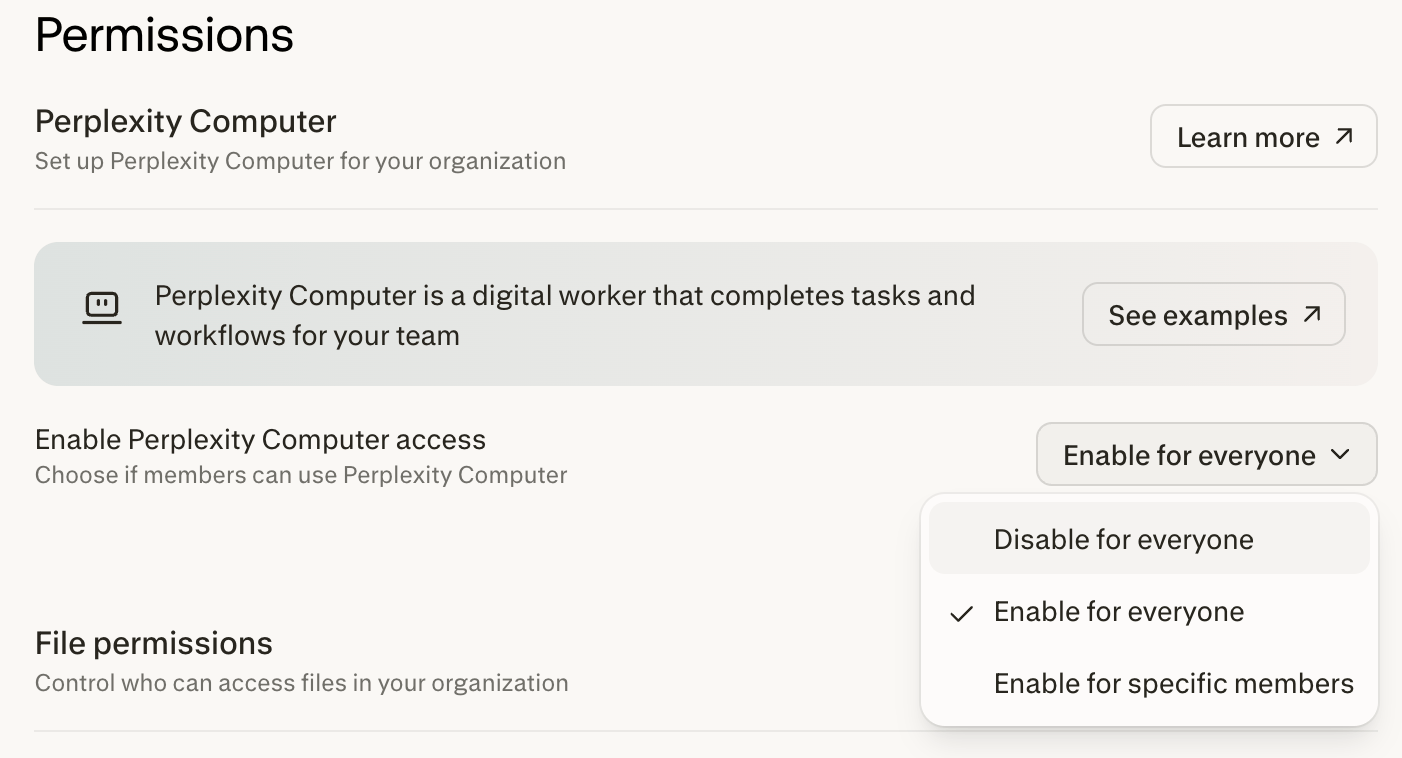
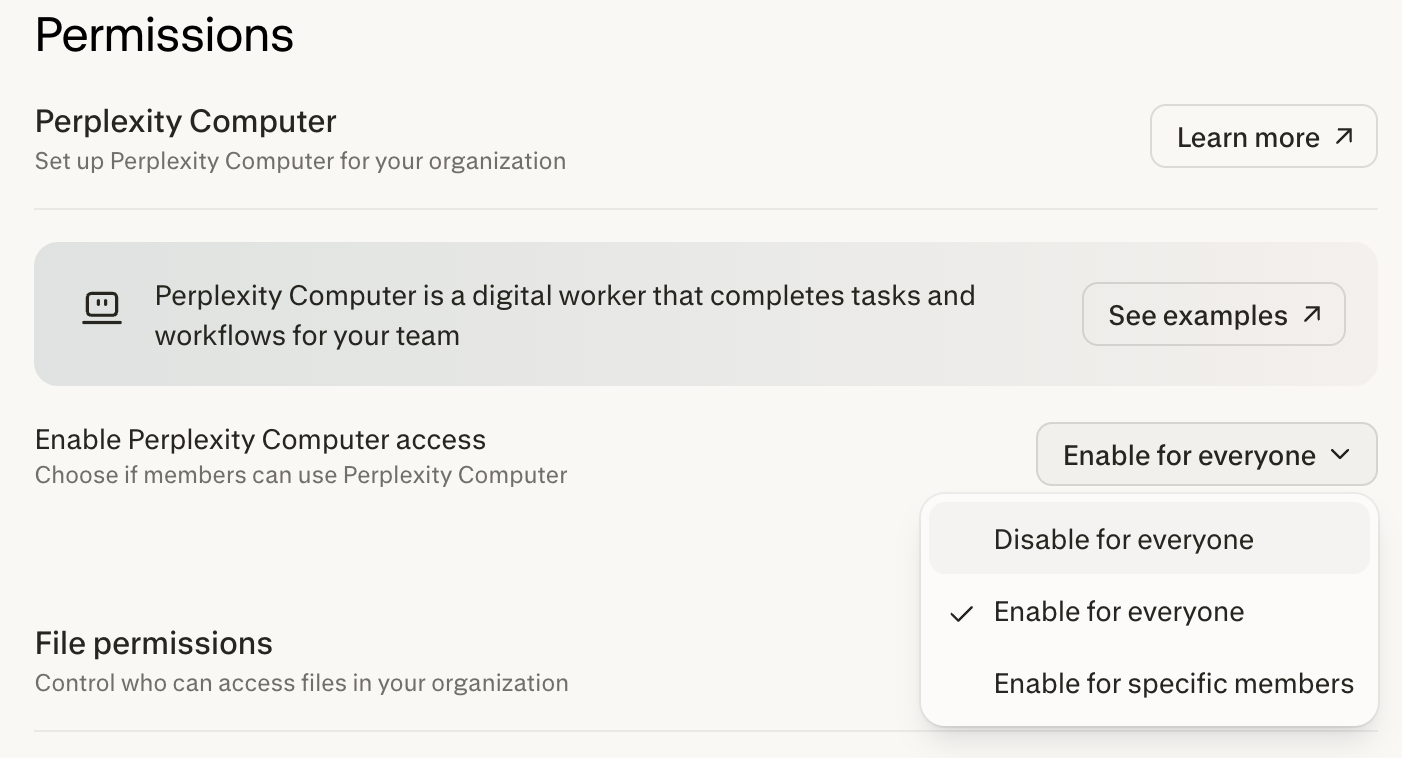
Computer is enabled by default. Administrators can enable it for specific
members in the organization or disable it entirely.
1
Navigate to Permissions in the Organization settings admin panel.
2
Find the Enable Perplexity Computer access menu, then choose Enable for
specific members to limit Computer to certain members, or Disable for
everyone.
Figure 7 — The Enable Perplexity Computer access menu on the Permissions page.
3
If you choose Enable for specific members, select Configure to open the
Members list, where you can set granular access to Computer.
To confirm the change took effect, check that the Enable Perplexity Computer
access menu shows your selection and that the change appears in your
organization’s audit logs.