

Before you begin
- Organization admin access in Perplexity.
- A CrowdStrike Customer ID (CID), including its checksum. Find it on the Sensor Downloads page in your Falcon console. See CrowdStrike’s guide.
- A provisioning token, if configured in your CrowdStrike environment.
Configure the required sensor version
Before enabling the integration, configure the default Linux sensor update policy in your Falcon console:1
Open the Linux sensor update policy
Open Sensor Update Policies, select Linux, and open the default policy.
2
Pin both sensor versions
Explicitly set both Sensor version and Linux ARM64 sensor version to 7.38.0-19105.
3
Save the policy
Save your changes to the default policy.
Both version fields must be pinned to 7.38.0-19105. Newer sensor versions will be supported once they are tested.
Enable Falcon for your organization
1
Open Computer Configuration
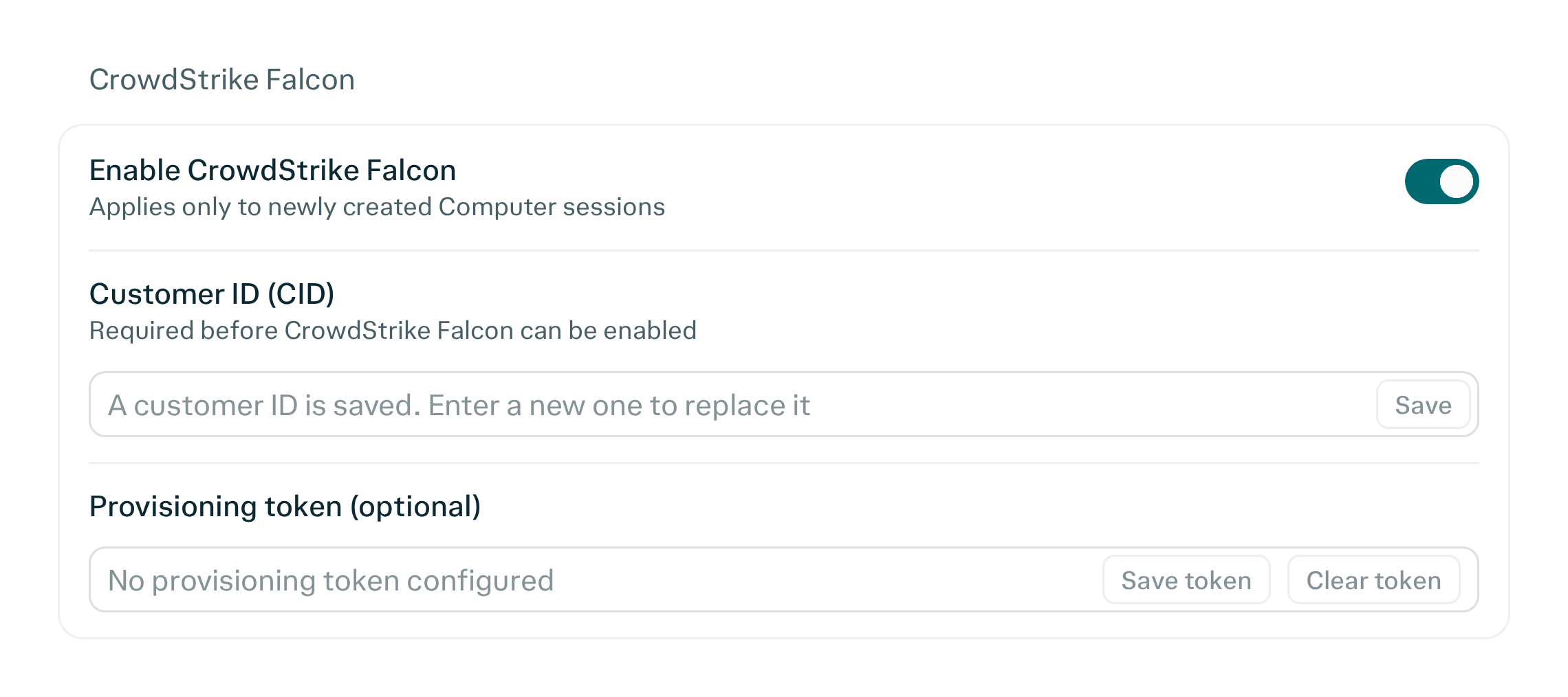
In Perplexity, open Organization Settings and select Computer Configuration.
2
Save your Customer ID
Find the CrowdStrike Falcon section. Enter your Customer ID, including its checksum, and select Save.
3
Supply a provisioning token if configured
If your CrowdStrike environment has a provisioning token configured, enter it and select Save token.
4
Enable CrowdStrike Falcon
Enable CrowdStrike Falcon for your organization.
Verify sandbox registration
After enabling the integration:- Start a new Computer session.
- Open Host Management in your Falcon console.
- Look for hosts with the Hostname
space-sandbox.
How changes affect existing sessions
Enabling or disabling the integration applies to new Computer sessions. Existing sessions retain their previous Falcon setting.- When you enable Falcon: start a new session to use the integration. Existing sessions without Falcon remain unchanged.
- When you disable Falcon: new sessions will not register with Falcon. Existing sessions that use Falcon retain their setting.