

Credits power Perplexity Computer, Perplexity’s AI assistant that does multi-step work for you. Your plan may include a monthly amount. You can purchase more as needed. Paid Consumer Pro plans also include a weekly amount of Computer usage, so you can use Computer each week before any credits are needed.
How much a task costs
The credits a task uses depend on its complexity. Here’s a typical range by task type (100 credits = $1). These are examples, not guarantees. Your actual usage may differ.
Task type | Typical range (credits) | Example prompt |
Quick fact or definition | 15–70 | Define EBITDA and explain how it differs from net income. |
Multi-step research report | 350–950 | Build a competitive landscape report with pricing and feature comparisons. |
Data dashboard | 2,400–9,800 | Build an analytics dashboard, collect competitor data, and summarize findings. |
Entire app or multi-day build | 15,000+ | Build and deploy a web app that tracks my team’s project deadlines. |
Table 1 — Example credit costs by task type.
Credit pricing, task ranges, monthly allowances, and included usage may change and can vary by promotion, region, or plan. Perplexity updates this page or your account settings if there are any significant changes to how credits or included usage work.
How many credits does your plan include?
Computer credits are available to Pro and Max subscribers, including Enterprise Pro and Enterprise Max. The number of included credits depends on your plan.
Consumer Pro plans do not start with a set monthly amount. Instead, paid Consumer Pro plans include weekly Computer usage. See Weekly Computer usage included with your Pro plan below. Consumer Max plans start with 10,000 credits a month. Enterprise plans start with a set monthly amount. See your account settings for the exact numbers on your plan.
When you first sign up you might also get a limited-time credit bonus. The bonus is one per account. It does not repeat if you cancel and resubscribe, switch between monthly and yearly billing, or apply a discount or education offer later.
Consumer plans start with:
Plan | Monthly credits | Limited-time bonus |
Pro | No monthly allocation (paid plans include weekly Computer usage) | 4,000 credits (one-time, expire in about 30 days) |
Max | 10,000 credits per month | 35,000 credits (one-time, expire in about 30 days) |
Table 2 — Monthly credits and new-subscriber bonus on consumer plans.
Enterprise plans start with:
Plan | Monthly credits | Limited-time bonus |
Enterprise Pro | 500 credits per month | 8,000 credits (one-time, expire in about 30 days) |
Enterprise Max | 15,000 credits per month | 40,000 credits (one-time, expire in about 30 days) |
Table 3 — Monthly credits and new-subscriber bonus on Enterprise plans.
Weekly Computer usage included with your Pro plan
Paid Consumer Pro plans now include a weekly amount of Computer usage. This lets you run Computer tasks every week without spending credits first.
Who gets included usage
Included weekly usage is available on paid Consumer Pro plans.
It is not included with promotional or non-paying Pro plans, Max plans, or Enterprise plans. Those plans keep the credit benefits described on this page. Perplexity may extend included usage to other plans in the future.
How the weekly reset works
Your included usage resets every week. The weekly cycle starts the first time you use included usage, so your reset date is based on when you started using it, not on your billing date.
Unused included usage does not roll over from one week to the next.
Included usage is separate from credits. It does not add to your credit balance and cannot be purchased, transferred, or refunded.
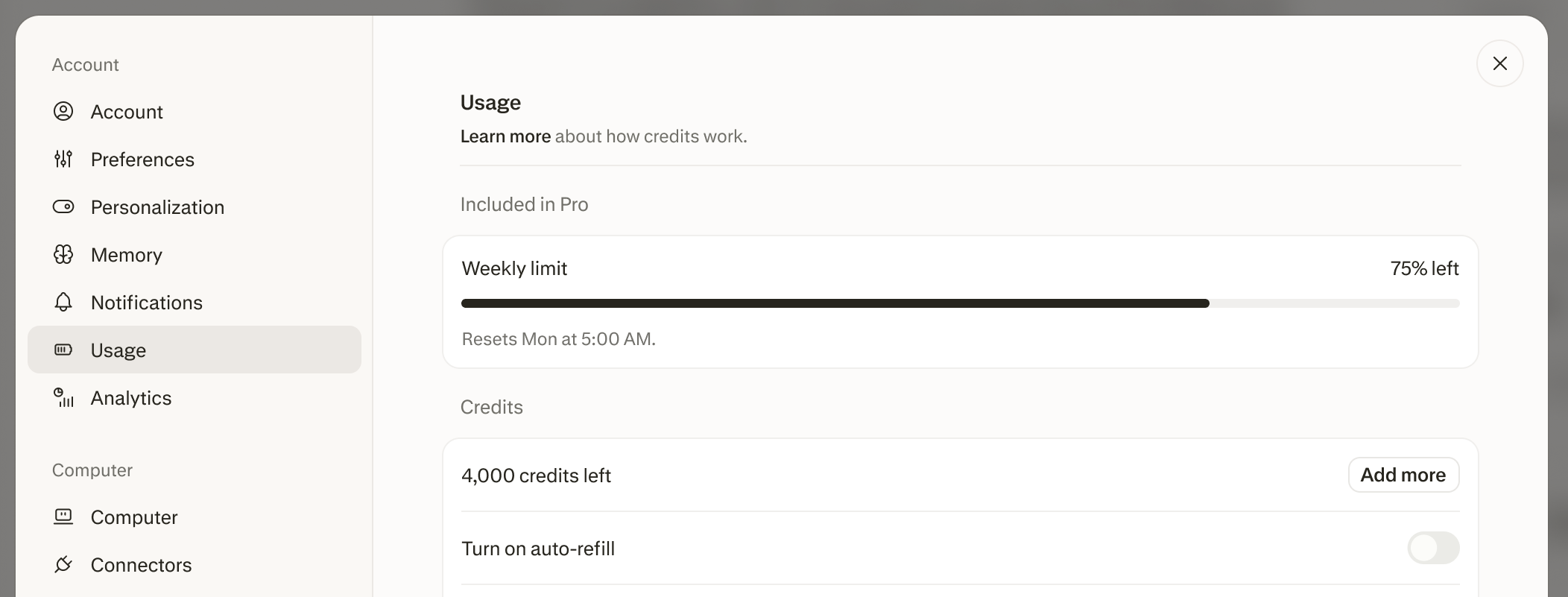
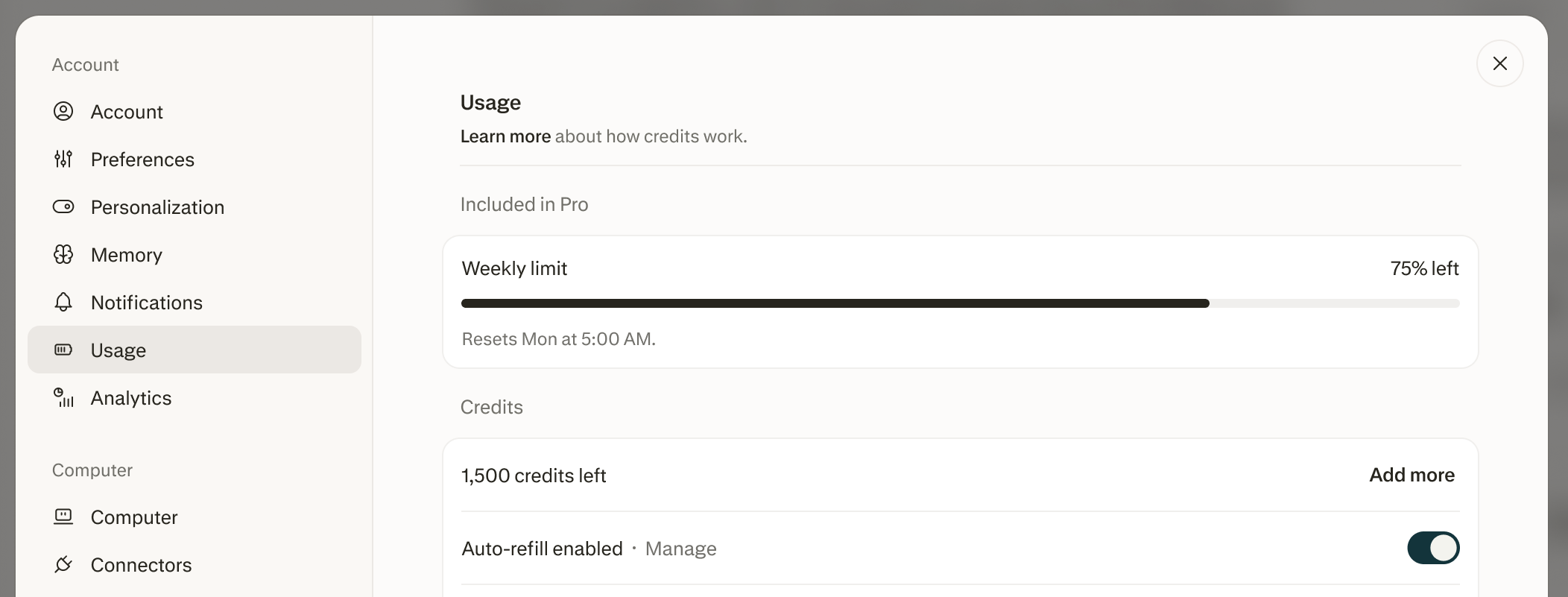
You can see how much included usage you have left and when it resets on your Usage page, under Included in Pro. The Weekly limit bar shows the percentage you have left and the day and time it resets.
Included usage and effort settings
What you can do with included usage depends on whether you also have credits:
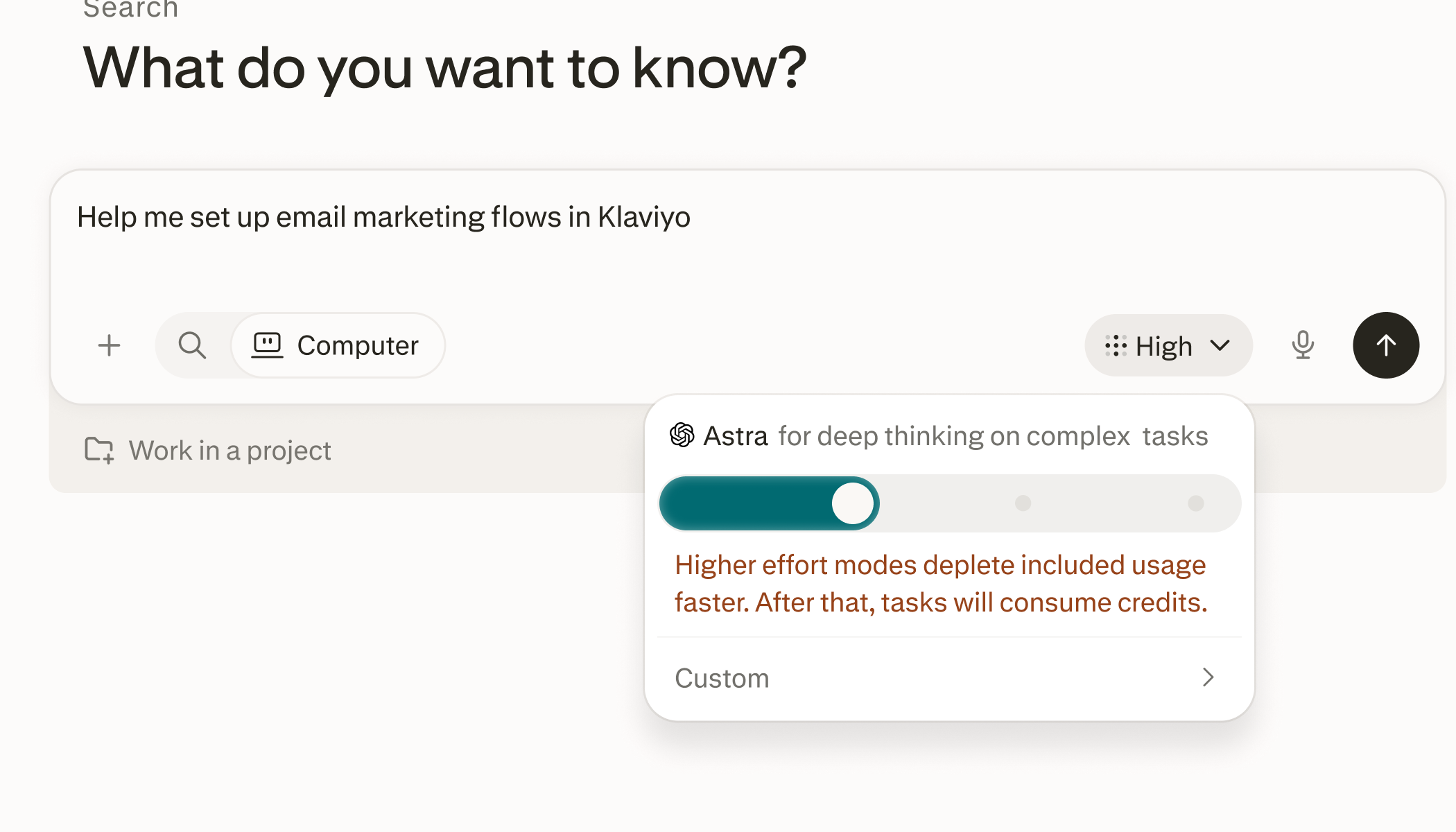
Included usage but no credits: Computer runs your tasks on the Light effort setting. Other effort settings are unavailable until you have credits.
Credits available: You can choose any effort setting, including Custom, where you pick a specific model and reasoning level yourself.
Higher effort settings use up your included usage faster. Once it runs out, tasks consume credits. For more on effort settings, see Effort mode in Perplexity Computer.
What happens when your included usage runs out
When you use up your included usage for the week, here’s what happens next:
Your account | What happens |
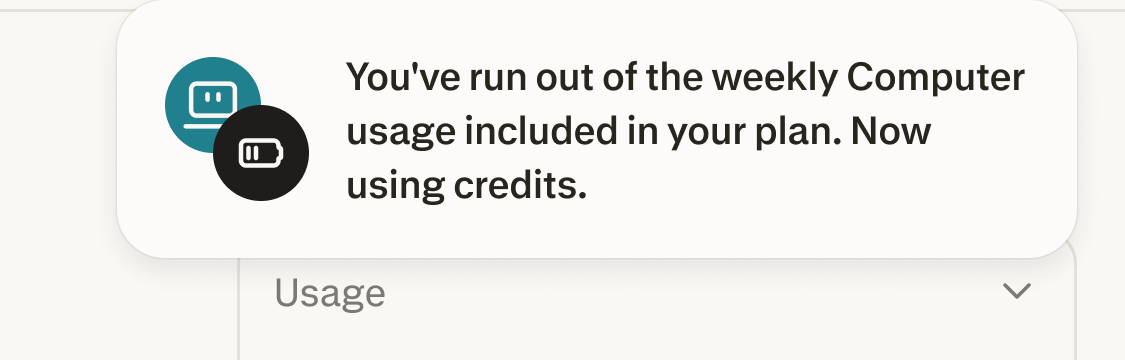
You have credits | Computer automatically switches to using your credits. You’ll see a notice in the session that says you’re now using credits. |
No credits, auto-refill on | Perplexity charges your payment method for credits according to your auto-refill settings, and your task continues. |
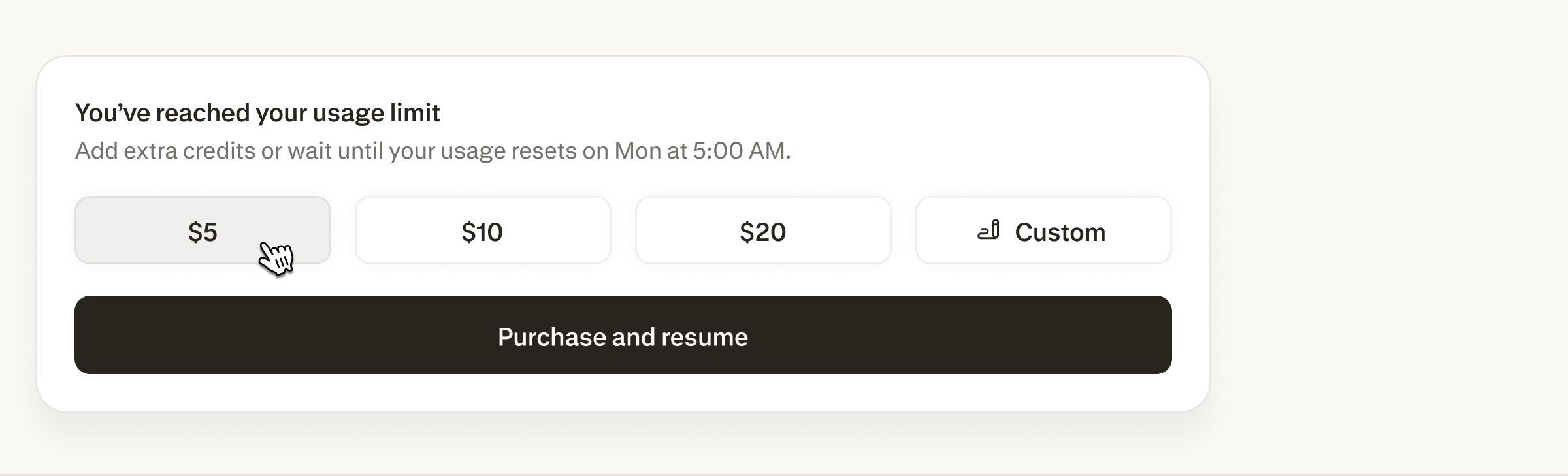
No credits, auto-refill off | The session is blocked. You’ll see a message that you’ve reached your usage limit, with the option to purchase credits and resume, or you can wait until your included usage resets. |
Table 4 — What happens when included weekly usage runs out.
Your included usage becomes available again at your next weekly reset.
What credits are used for
Perplexity Ask searches do not consume credits.
Credits are consumed only when using Computer, Perplexity’s AI assistant that does multi-step work for you. Computer understands goals, gathers context, uses the right tools, and carries multi-step work forward across web, files, and connectors.
Easier Computer tasks require fewer credits. Tasks that require significant computing power, such as heavy video generation or large-scale data collection, use more credits.
Which actions use credits
Action | Uses credits? |
Ask searches on the web and in the Perplexity apps | No |
Comet Assistant in Search mode | No |
Computer tasks | Yes |
Comet Assistant in Work mode (Work mode runs Computer) | Yes |
Table 5 — Which actions use credits.
In Comet, check which mode is selected before you send a prompt. Search mode answers questions without using credits. Work mode hands your request to Computer and consumes credits.
On a paid Consumer Pro plan, Computer uses your included weekly usage first. Credits are only used once your included usage for the week has run out.
If you don’t want to use Computer
You don’t need credits to use your subscription. Ask searches stay available without them. To avoid consuming credits:
Use Ask instead of starting Computer tasks.
In Comet, keep the Assistant in Search mode.
Leave auto-refill off. It is off by default, so you are never charged for credits unless you buy them or turn auto-refill on.
If you see a prompt to add credits, it means the request you sent would run through Computer. You can dismiss the prompt and continue with Ask instead. You don’t need to buy credits or cancel your plan.
Checking your balance and usage
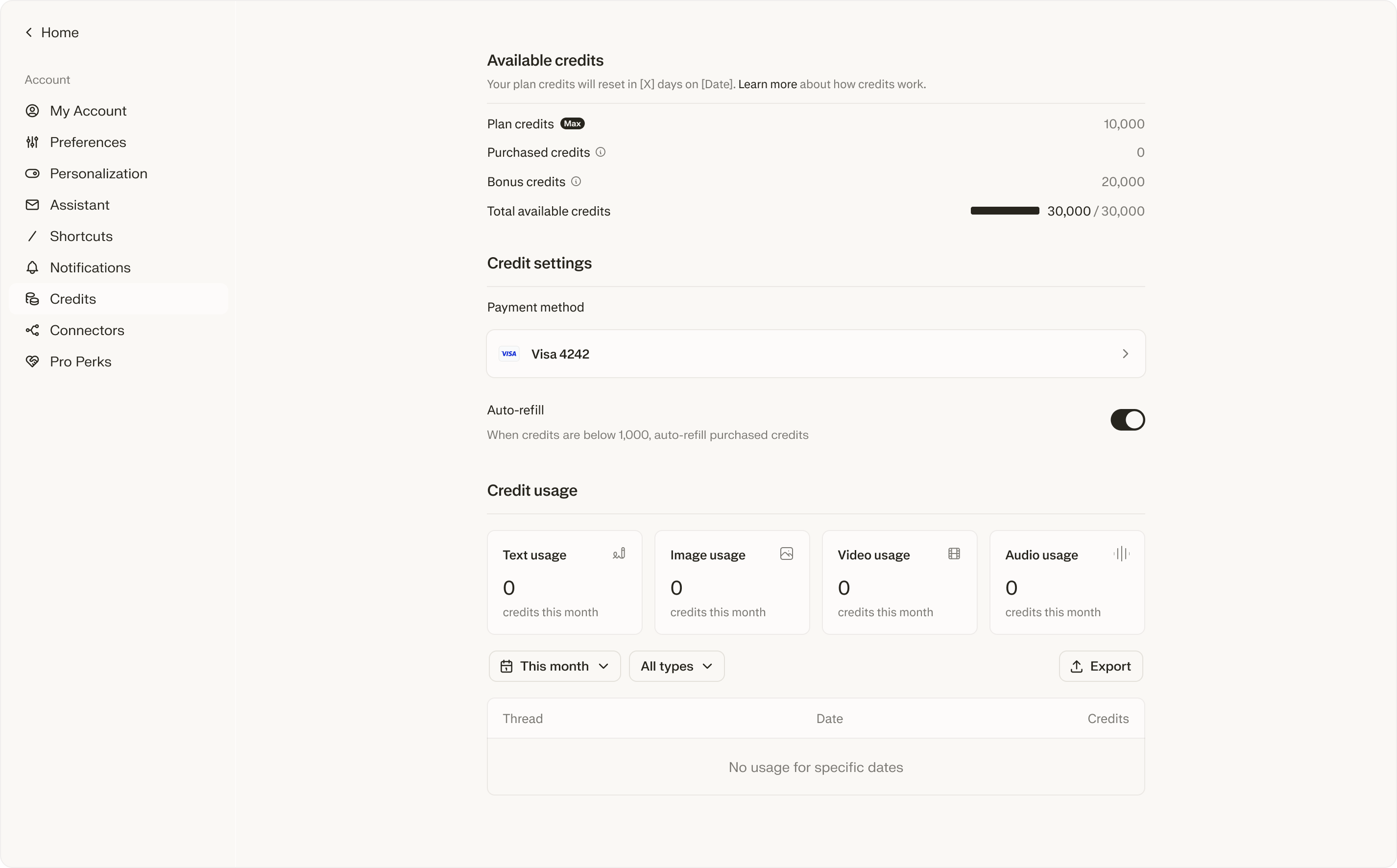
Visit your Usage page to see:
Current balances of Bonus, Plan, and Purchased credits
Your remaining included weekly Computer usage and its next reset date (paid Consumer Pro plans)
Days until your next monthly refresh
Usage breakdown by type (text, image, video, audio) and by thread
Auto-refill and spending limit settings
For a single task, open the Usage dropdown in that thread. You will see how many credits you’ve used and the type of usage it was.
Credits are personal to your account. You cannot transfer or assign them to another user. Enterprise plans work differently. See How Credits Work for Enterprise organizations — Member Guide.
Credit types and resets
There are three types of credits. Computer uses included weekly usage first (paid Consumer Pro plans), then credits in this order: Bonus, then Monthly (Plan), then Purchased.
Bonus credits are granted at Perplexity’s discretion and expire on the date given when granted. Computer uses these first. On a Consumer Pro or Max plan, you can see each bonus grant’s expiry date on your Usage page: in a desktop browser, select More details and check the Expires on column. Enterprise usage pages don’t include this column. Bonus credits expire at a specific time on that date, not at the end of the day. The page doesn’t show the time, so use them before that date to be safe.
Monthly credits (shown as Plan) refresh on your billing cycle date. Annual subscribers still refresh monthly on the day you first signed up. Unused monthly credits do not roll over.
Purchased credits are consumed last. They stay in your account until you use them, but they expire if you don’t use Computer for one year.
Included weekly usage on paid Consumer Pro plans is not a credit type. It is applied before any credits are consumed, resets weekly, and does not roll over.
Credits are non-refundable except in the situations listed under Refunds. They cannot be redeemed for cash. They cannot be transferred or sold. They only pay for eligible Perplexity features. They carry no value outside Perplexity.
What happens when you run out
Active tasks pause. They do not cancel. Your work is saved. Tasks pick up where they stopped once you have credits again.
New tasks are blocked. You can’t start new tasks that use credits until you have credits again.
Tasks resume automatically. Paused tasks pick back up on their own. As soon as you add credits or your monthly credits reset, they keep going.
Want to avoid pauses? Turn on auto-refill. It buys more credits before you hit zero so your tasks keep running.
On a paid Consumer Pro plan, running out of included weekly usage works a little differently. Computer switches to your credits if you have them, or to auto-refill if it’s on. Otherwise the session is blocked until you purchase credits or your included usage resets. See What happens when your included usage runs out.
Purchasing credits
Auto-refill
With auto-refill on, you can buy more credits automatically when your balance gets low. This keeps your tasks from being interrupted. The trigger is 500 credits for Pro and 2,500 for Max. This feature is off until you turn it on. Turn it off anytime on your Usage page.
To turn it on:
Go to your Usage page
Toggle on Auto-refill
Then set two things:
Refill amount — This is how many credits you buy each time (set any value you want)
Monthly auto-refill limit — This is the most you will automatically spend on auto-refill each month.
Auto-refill is off by default. You’ll never be automatically charged for credits without opting in first.
Manual purchases
You can also choose to purchase one-time credits on your own. If your credits run out and you have not turned auto-refill on, your tasks will pause until you buy more or your monthly credits reset.
Spending limits
Every Max account has a monthly spending cap on total credit charges per billing period. The default is $200, and you can set it anywhere up to $5,000 in your credit settings. Pro accounts also have a monthly spending cap.
If you hit the cap:
Active tasks pause.
You will see a notification with the option to raise your limit.
No more charges are made until you update settings.
Payment method
Credit purchases are charged to your default card. If the payment fails, your tasks pause and you’ll get an email; update your payment method to resume.
You can switch to a different default card for credit purchases at any time. It doesn’t have to match your subscription card.
If you upgraded to Max through the iOS or Android app, your monthly credits work without a card. To buy credits on the website or use auto-refill, add a card on the website.
Email notifications
Perplexity emails you when:
Credit purchase — confirmation when auto-refill adds credits
Low balance — when credits are running low (if auto-refill is off)
Out of credits — when you run out of credits and tasks pause
Spending cap reached — when you’ve hit your monthly spending cap
Payment failed — when an auto-refill charge couldn’t be processed
Low balance and out-of-credits emails reflect your total credit balance, not only recent usage. When a bonus grant expires, your balance drops, so you can receive one of these emails even if you haven’t used Computer recently. To confirm what happened, check your bonus grants and usage on your Usage page.
If you change your mind
You can turn off auto-refill anytime on your Usage page. You can lower your monthly spending cap. You can cancel your plan from account settings. Monthly credits end when your plan ends. Purchased credits are not forfeited, but you can only use them with an active paid plan, because Computer isn’t available on free accounts. Purchased credits expire if you don’t use Computer for one year.
Troubleshooting
What if a task fails?
If a Computer task can’t finish because of an error on Perplexity’s side, contact us via Help > Contact Support with the task link, and support will review it.
If a task finishes but the result is not what you wanted, credits are not automatically refunded.
Why you might see a negative balance
In a few situations, your balance can go below zero:
Perplexity still bills the step already running when your credits run out, so your balance can go below zero before the task pauses.
A bonus credit expires while you have a task in progress. The task keeps going against your other credits, which can dip the balance.
Auto-refill is catching up after a low balance and the charge has not posted yet.
While your balance is below zero, Computer blocks new tasks that use credits. You can start them again once your balance is back at 0 or above.
Any credits added to your account pay off the negative balance first. This includes a manual purchase, an auto-refill, or your monthly refresh. For example, if your balance is -200 and you add 500 credits, your balance becomes 300. You are not charged extra for going negative.
A task says you’re out of credits but your balance shows credits remaining
If a task is blocked with an out-of-credits message while your Usage page still shows credits available, work through these steps:
Refresh first. The balance shown on the page can briefly lag behind your actual credit state. Refresh the page, then retry the task from a new tab.
On an Enterprise plan, check which balance you’re looking at. Your Usage page can show your organization’s shared credit pool, while tasks are checked against your individual monthly allocation and any usage cap set by your administrator. If you’ve hit your individual allocation or cap, Computer blocks new tasks even though the pool still shows credits. Select Request more in your usage settings to ask your administrator to raise your cap. See How Credits Work for Enterprise organizations — Member Guide.
Still blocked with credits available? Contact us via Help > Contact Support and include the task link so support can review the credit state on that task.
Refunds
Can I get a refund on my credits?
Yes, in specific situations. Perplexity refunds credits when:
A Computer task failed because of an error on Perplexity’s side, like a tool crash, a sandbox error, or a network failure. If you think something went wrong, contact us via Help > Contact Support with the task link, and support will review it.
You see a credit purchase you did not authorize, including an auto-refill charge after you turned auto-refill off.
You upgraded to Max by mistake and reached out within 24 hours.
Local consumer-protection law requires it. Where the law gives you stronger rights, those rules apply. Applicable law may entitle you to a refund of unused credits:
In the EU, UK, and Turkey: Within 14 days of purchase; and
In Brazil and South Korea: Within 7 days of purchase.
What credits cannot be refunded?
Credits used by a Computer task that finished, even if the result was not what you hoped for. The credits paid for the computing power that ran the task.
Credits used by a task you stopped while it was still running. The credits already spent up to that point paid for real computing power.
Unused credits after you cancel your plan. Monthly credits end when your plan ends. Purchased credits are not forfeited, but you can only use them with an active paid plan, because Computer isn’t available on free accounts. They expire if you don’t use Computer for one year and are not exchangeable for cash.
Credits that cost more than you expected for a task that ran as designed. Typical credit ranges are listed under How much a task costs. If a task surprised you, contact us via Help > Contact Support with the task link so your feedback can help improve the product.
How do I request a refund?
Contact us via Help > Contact Support and include the task link, the charge date, or a screenshot of the charge. The more specific your example, the faster support can look it up. Support replies with a decision and, if the refund is approved, restores the credits to your account.
Frequently asked questions
Do monthly credits carry over?
Do monthly credits carry over?
No. Unused monthly credits expire at the end of each billing cycle.
Do purchased credits expire?
Do purchased credits expire?
Yes. Purchased credits expire if you don’t use Computer for one year.
Does unused weekly Computer usage on my Pro plan carry over?
Does unused weekly Computer usage on my Pro plan carry over?
No. Included weekly usage resets each week and does not roll over. Any unused amount is not carried into the next week.
Does included weekly usage count as credits?
Does included weekly usage count as credits?
No. Included usage is separate from credits. It is used before any credits, resets weekly, and cannot be purchased, transferred, or refunded. Your credit balance is not affected until your included usage for the week runs out.
What happens to my credits if I cancel?
What happens to my credits if I cancel?
Monthly credits end when your plan ends. Purchased credits are not forfeited, but you can only use them with an active paid plan, because Computer isn’t available on free accounts. Credits aren’t refundable, except in the situations listed under Refunds.
Can Perplexity revoke my credits?
Can Perplexity revoke my credits?
Only in limited cases like fraud, abuse, or Terms of Service violations. Perplexity doesn’t revoke credits because you use the product heavily within its policies.
Can I use credits on mobile?
Can I use credits on mobile?
Yes. You can purchase credit packs in the iOS and Android apps.
Why am I asked to buy credits when I already pay for a subscription?
Why am I asked to buy credits when I already pay for a subscription?
Your subscription and Computer credits are separate. Your plan covers Ask searches, which don’t use credits. Credit prompts appear only when a request runs through Computer, such as a Computer task or the Comet Assistant in Work mode. On a paid Consumer Pro plan, you’ll only see a credit prompt after your included weekly Computer usage has run out.
If you don’t want to use Computer, dismiss the prompt and continue with Ask. Your subscription keeps working without credits.
Do Pro credits refresh monthly?
Do Pro credits refresh monthly?
No. Consumer Pro plans don’t include monthly credits, and the 4,000-credit new-subscriber bonus is one-time. Paid Consumer Pro plans include weekly Computer usage instead; see Weekly Computer usage included with your Pro plan. For monthly credits, upgrade to Max, which includes 10,000 credits a month.
I'm a Pro subscriber. How do I get credits?
I'm a Pro subscriber. How do I get credits?
New Pro subscribers may get a one-time bonus, and you can buy credits anytime on your Usage page. Paid Consumer Pro plans also include weekly Computer usage on the Light effort setting; see Weekly Computer usage included with your Pro plan. For monthly credits included in your plan, upgrade to Max, which includes 10,000 credits a month.