

Before you start
You must be an organization administrator with the Manage organization settings permission.
Make sure you don’t have an active Enterprise Pro or Enterprise Max subscription. If you do, cancel it first. If it’s past due, contact us.
Remove all other members and delete any outstanding invitations. Before you remove anyone, read what happens to your data below.
What happens to your data
Removed members, and members who leave on their own, lose access to the organization’s shared Projects, files, and sessions, including sessions they created while they were in the organization. Their sessions aren’t deleted when they leave, but they can’t open them. Your organization’s data retention settings still apply to these sessions.
Sessions members created before they joined stay in their personal accounts, unless they added them to a Project or changed who can see them while they were in the organization.
When you delete the organization as its only remaining member, your sessions, your files, and the Projects you own move to your personal account.
Steps to delete your Enterprise organization
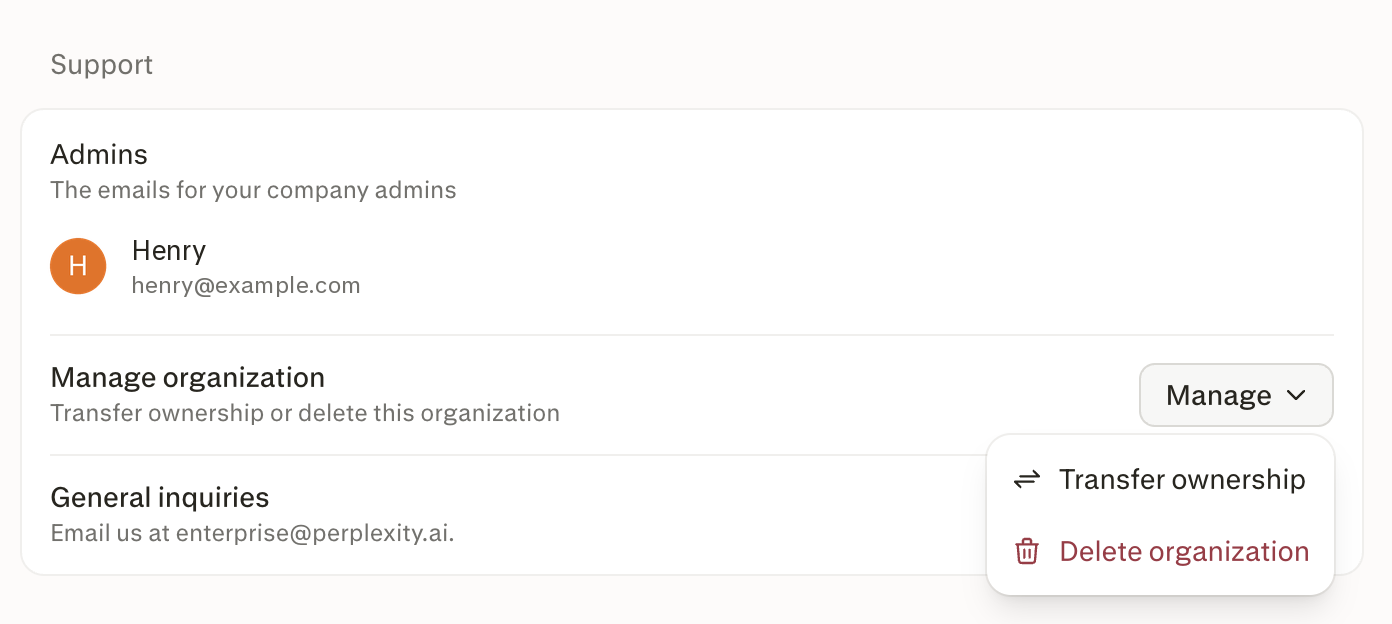
Open the Organization details page.
Scroll to Manage organization and click Manage.
Select Delete organization.
Click Confirm.
If you go through these steps but see a message telling you to contact Perplexity Support, give it 24 hours and try again. Sometimes it takes a little while for everything to update behind the scenes.